
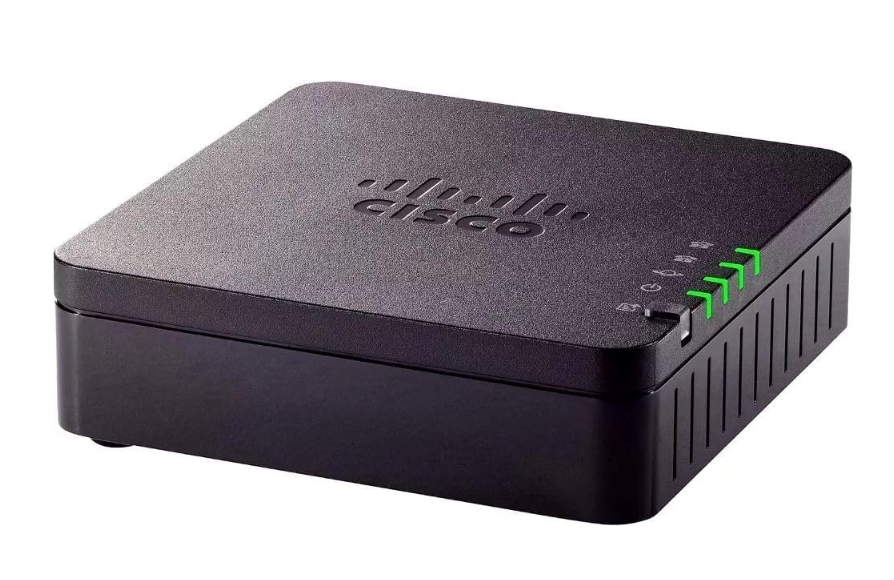
The Cisco 190 Series ATA is an analogue telephone adapter (ATA) that allows you to connect a traditional analogue telephone, fax machine or other compatible analogue device to the Plexatalk SIP telephone service.
This guide explains how to connect your Cisco ATA, find its IP address, access its configuration page and enter the SIP account details supplied by Plexatalk.
This guide covers the following Cisco multiplatform models:
- Cisco ATA 191 MPP
- Cisco ATA 192 MPP
What you’ll need
Before you begin, you’ll need the SIP account details supplied by Plexatalk:
- Extension / SIP User ID – for example,
1000 - SIP Password
- SIP Server
- Connection Type – UDP, TCP or TLS
Enter these details exactly as supplied. SIP passwords are case-sensitive.
You’ll also need:
- Your Cisco ATA 191 MPP or ATA 192 MPP
- An analogue telephone
- An Ethernet cable
- Access to your router or network
- A computer, tablet or phone connected to the same network as the ATA
Step 1: Connect your Cisco ATA
Connect an Ethernet cable between the NETWORK port on the Cisco ATA and your router or network.
Connect your analogue telephone to the PHONE 1 port.
If you have a Cisco ATA 192 and are configuring a second line, a second analogue device can be connected to PHONE 2.
Connect the ATA’s power supply and allow the device a few minutes to start.
Step 2: Find the IP address of your Cisco ATA
Before you can configure the ATA, you need to find its IP address.
Pick up the handset of the analogue telephone connected to the ATA.
Dial:
****
This opens the ATA’s Interactive Voice Response (IVR) menu.
Then dial:
110#
The ATA will read its current IP address aloud.
For example, you might hear:
192.168.1.123
Make a note of the IP address.
The address will normally begin with something such as 192.168. or 10. depending on how your network is configured.
If the ATA reports an address beginning with 169. or reports 0.0.0.0, it has probably not received a valid IP address from your network. Check the Ethernet connection and your router or network configuration before continuing.
Step 3: Open the Cisco ATA configuration page
Using a computer, tablet or phone connected to the same network as the Cisco ATA, open a web browser.
Enter the IP address you obtained in the previous step into the browser’s address bar.
For example:
http://192.168.1.123
The Cisco ATA configuration page should appear.
If the page doesn’t open, check that:
- Your computer or device is connected to the same network as the ATA.
- You entered the IP address correctly.
- The ATA is powered on and connected to the network.
- The ATA still has the same IP address. Its address may change after it is restarted.
Step 4: Log in to the Cisco ATA
Sign in to the ATA’s administration interface.
If the ATA is new, has been factory reset or hasn’t previously been configured, its default administrator credentials may be:
Username: admin
Password: admin
If these credentials don’t work, the administrator password may previously have been changed.
If the ATA came from another telephone provider, that provider may also have changed or restricted access to the device.
Important: Your admin password and SIP password are different
Don’t confuse the password used to access the Cisco configuration page with the SIP Password supplied by Plexatalk.
The administrator password gives you access to the ATA’s settings.
Your Plexatalk SIP Password allows the ATA to register with our telephone service.
They are not interchangeable.
Step 5: Enter your Plexatalk SIP account details
Once logged in, switch to the ATA’s advanced or administrator configuration view if required and locate the settings for Voice and Line 1.
The exact wording displayed can vary slightly depending on the Cisco ATA model and firmware version.
Enter the SIP account information supplied by Plexatalk.
SIP Server
Locate the Proxy or SIP server setting and enter the SIP Server supplied by us.
For example:
Proxy: your supplied SIP server
Do not add http:// or https:// unless we have specifically instructed you to do so.
Extension / SIP User ID
Locate the User ID setting and enter the extension supplied by Plexatalk.
For example:
User ID: 1000
Authentication ID
If the ATA provides a separate authentication or Auth ID field, enter your supplied extension unless Plexatalk has provided a different authentication ID.
For example:
Auth ID: 1000
SIP Password
Locate the Password setting and enter the SIP Password supplied by Plexatalk.
Password: your supplied SIP password
Remember that SIP passwords are case-sensitive.
Be careful not to enter the ATA’s administrator password in this field.
Step 6: Select UDP, TCP or TLS
Locate the SIP transport or connection setting for the line.
Set this to the Connection Type supplied by Plexatalk:
- If we supplied UDP, select UDP.
- If we supplied TCP, select TCP.
- If we supplied TLS, select TLS.
The transport must match the connection type supplied with your Plexatalk SIP account. Selecting a different transport can prevent the ATA from registering.
Unless Plexatalk has supplied additional configuration information, leave other SIP settings at their existing or default values.
Step 7: Save the configuration
Save or submit your changes using the option provided in the Cisco configuration interface.
Allow the ATA a short time to apply the new settings and connect to Plexatalk.
The device may restart after its configuration is saved.
Once it has finished, pick up the connected telephone and check for a dial tone.
Try making an outgoing call.
Troubleshooting your Cisco 190 Series ATA
I have no dial tone
Check that the analogue telephone is connected securely to PHONE 1.
Make sure the ATA is powered on and that the Ethernet cable is connected securely between its NETWORK port and your router or network.
If the ATA has registered successfully but there is still no dial tone, try another analogue telephone or telephone cable if available.
I can’t make or receive calls
Check the SIP configuration carefully.
In particular, confirm that:
- SIP Server / Proxy exactly matches the SIP Server supplied by Plexatalk.
- User ID matches your Extension / SIP User ID.
- Auth ID, if required, matches the supplied authentication details.
- Password contains your Plexatalk SIP Password.
- The SIP Password has been entered with the correct upper and lower-case characters.
- SIP Transport matches the Connection Type supplied by Plexatalk: UDP, TCP or TLS.
- There are no accidental spaces before or after the username, password or server address.
- The ATA has a working Internet connection.
After correcting any settings, save the configuration and give the ATA a short time to register again.
My Cisco ATA doesn’t have a valid IP address
Your ATA needs a valid local IP address before it can connect to the Internet and the Plexatalk service.
Check that the Ethernet cable is connected to the NETWORK port.
Connect an analogue telephone to PHONE 1, pick up the handset and dial:
****
Then dial:
110#
The ATA will read its current IP address aloud.
An address such as 192.168.x.x or 10.x.x.x will normally indicate that the ATA has obtained a local network address.
If the address begins with 169. or is 0.0.0.0, the ATA has probably not received a valid address from your router.
Check the Ethernet cable and router connection. If necessary, restart the router and ATA.
My ATA keeps connecting to my previous provider
If your Cisco ATA was previously supplied or configured by another VoIP provider, it may still contain that provider’s provisioning information.
This can cause the ATA to reconnect to the previous provider or overwrite settings you enter manually.
If this happens, contact the previous provider and ask them to remove the device from their provisioning platform.
They may ask you for information including:
- Proof of purchase
- The ATA’s MAC address
- A photograph of the device label
- A typed copy of the MAC address
If you purchased the ATA secondhand, you may need assistance from the previous provider or Cisco before it can be used with another SIP service.
Factory resetting a Cisco 190 Series ATA
A factory reset should normally be a last resort, as it completely removes the existing configuration from the ATA.
Before resetting the device, make sure you have the Plexatalk SIP account details needed to configure it again.
To perform a factory reset through the Cisco web interface:
- Find the ATA’s IP address by dialling
****followed by110#. - Open the IP address in a browser on a device connected to the same network.
- Log in as an administrator.
- Navigate to Administration > Factory Defaults.
- Confirm the factory reset.
- Wait for the ATA to restart completely.
After the factory reset, follow this guide again and enter the SIP details supplied by Plexatalk.
Important: A factory reset erases the ATA’s existing settings and customisations.
If the ATA automatically reconnects to a previous provider after being factory reset, it may still be linked to that provider’s remote provisioning system. Contact the previous provider to have the device removed.
Still having trouble?
If you’ve followed the steps above and your Cisco ATA still won’t connect, please contact Plexatalk Support.
When contacting us, it helps if you can provide:
- The model of your ATA – Cisco ATA 191 MPP or ATA 192 MPP
- The Extension / SIP User ID you’re configuring
- The ATA’s current IP address
- Whether you have a dial tone
- Whether incoming or outgoing calls are working
- The Connection Type you’re using – UDP, TCP or TLS
- Any registration status or error shown in the Cisco configuration interface
Do not send us your SIP Password unless a member of our support team specifically requests it through an appropriate support channel.
We’ll then be able to help you get connected.