

Do Burglar Alarm Systems Work with VoIP? Our Real-World Test Results with a Yale Alarm System
As the UK moves towards the nationwide PSTN switch-off, millions of homes are replacing traditional analogue phone lines with modern VoIP (Voice over Internet Protocol) services. While the change brings benefits such as lower costs and greater flexibility, it has also raised questions about how existing equipment will work once the old telephone network is retired.
One of the most common concerns we hear from homeowners is whether their burglar alarm will continue to operate when connected to a VoIP phone service. Many alarm manufacturers and installers advise that VoIP is not officially supported, leading some people to worry that their alarm monitoring could stop working altogether.
The reality is more complicated than a simple yes or no answer. Different alarm systems use different communication methods, and some are more compatible with VoIP than others.
Rather than relying solely on manufacturer guidance, Plexatalk decided to carry out real-world testing with a range of alarm systems connected to our VoIP service. In this guide, we’ll explain what we tested, what worked, what didn’t, and what homeowners should consider before switching from a traditional phone line.
The UK’s telecommunications network is undergoing one of the biggest changes in decades. Openreach and communication providers are retiring the Public Switched Telephone Network (PSTN) and ISDN services, replacing them with modern digital, internet-based alternatives. This process, commonly known as the “UK landline switch-off”, means that traditional analogue phone lines will eventually no longer be available.
For many households, the change is relatively straightforward. Telephones can usually be connected to a broadband router or VoIP service with minimal disruption. However, devices that were designed to communicate over analogue phone lines can present additional challenges.
Burglar alarms are a good example. Many alarm systems installed over the last 20 to 30 years were designed to send signals using the PSTN network. Depending on the model and configuration, they may dial a monitoring centre, send recorded voice messages, or communicate with the homeowner using analogue telephone technology.
As more homeowners migrate to VoIP services, an important question arises: will these alarm systems continue to work once the traditional landline is removed?
Unfortunately, there is no universal answer. Some older alarm systems may struggle to communicate reliably over a VoIP connection, while others continue to function perfectly well. The outcome often depends on the alarm hardware, the signalling method being used, and the quality of the VoIP service itself.
Understanding how your alarm communicates is the first step in determining whether any upgrades are required. In many cases, existing equipment can continue operating successfully, while in others, replacement communication modules or newer alarm technology may be recommended.
If you’ve researched burglar alarms and VoIP online, you’ve probably seen warnings stating that VoIP is “not supported” or “not recommended” for alarm monitoring. At first glance, this can make it seem as though switching to a VoIP phone service will automatically stop your alarm from working.
In reality, the situation is often more nuanced.
Alarm manufacturers and installers are responsible for systems that protect homes and businesses, so they naturally take a cautious approach. Because alarm systems are safety-critical, manufacturers are reluctant to guarantee compatibility unless they have thoroughly tested a particular setup.
One of the challenges is the sheer number of variables involved. There are hundreds of alarm panels, monitoring devices, routers, broadband connections and VoIP providers in use across the UK. Testing every possible combination would be extremely difficult, so many manufacturers simply state that VoIP is not officially supported unless they have specifically verified it.
There is also some historical context. Early VoIP services sometimes struggled with modem-based alarm signalling, particularly where audio compression affected the tones being transmitted. As a result, concerns about alarm compatibility became widespread throughout the industry.
However, “not supported” does not necessarily mean “won’t work”. In many cases, it simply means the manufacturer has not tested or certified every possible configuration. Real-world results can vary considerably depending on the alarm system, the signalling method being used, and the quality of the VoIP service itself.
The short answer is: in many cases, yes.
Despite the warnings often found in manufacturer documentation, many burglar alarm systems can successfully operate over a VoIP phone service. However, whether a particular system works reliably depends on several factors, including the alarm model, the way it communicates, the hardware used to connect it, and the quality of the underlying network connection.
Not all alarm systems use the same signalling methods. Some simply dial a telephone number and play a recorded message, while others use modem-based signalling to communicate with a monitoring centre. These different methods can behave very differently when connected to a VoIP service.
The equipment used is also important. A high-quality ATA (Analogue Telephone Adapter) can often provide a much better experience than older or lower-specification devices. Likewise, modern VoIP platforms are generally far more capable and reliable than some of the early VoIP services that contributed to concerns about alarm compatibility in the past.
That said, there is no universal answer. An alarm system that works perfectly in one property may not perform the same way in another, particularly if different hardware, broadband connections or monitoring arrangements are involved.
For this reason, the most reliable approach is to test the specific alarm system in question rather than relying solely on general guidance. That’s exactly what we set out to do with our own real-world testing.
Rather than relying solely on manufacturer guidance or online discussions, we wanted to see how a real alarm system would perform when connected to a VoIP service.
For our testing, we used a Yale alarm system connected through a Grandstream Analogue Telephone Adapter (ATA). An ATA is a device that allows equipment designed for a traditional telephone line to connect to a modern VoIP service. In simple terms, the alarm system was connected to the Grandstream ATA, which was then connected to the internet and configured to use the Plexatalk VoIP platform.
We carried out a series of tests to verify whether the alarm could successfully place calls and communicate as intended. During testing, the alarm system was able to establish calls successfully using the Plexatalk service, demonstrating that this particular Yale configuration was capable of operating over a VoIP connection.
This is an important finding because it shows that traditional alarm systems are not automatically incompatible with VoIP. While some manufacturers state that VoIP is not supported, our testing confirms that at least some alarm systems can continue functioning correctly when connected through suitable hardware and a quality VoIP provider.
However, it is important to be transparent about the scope of these results. Our testing was limited to specific Yale alarm equipment, a Grandstream ATA, and the Plexatalk VoIP platform. We did not test every Yale model, nor did we evaluate systems from other manufacturers.
Different alarm panels, signalling methods, monitoring centres and VoIP providers may produce different results. For that reason, our findings should be viewed as evidence that compatibility is possible, rather than a guarantee that every alarm system will work in every VoIP environment.
The key takeaway is that the only reliable way to know how a particular alarm system will behave is to test the specific setup being used.
One of the reasons there is so much conflicting information about burglar alarms and VoIP is that compatibility depends on several different factors. Two seemingly similar alarm systems can produce very different results depending on how they are configured and what equipment is being used.
The alarm manufacturer and model play a major role. Some systems were designed with more tolerant communication methods, while others rely on signalling techniques that are more sensitive to changes in the telephone network. The age of the alarm can also be important, as older systems were developed specifically for analogue phone lines and may be less adaptable.
The signalling protocol used by the alarm is another key consideration. Systems that simply make voice calls may behave differently from those that use modem-based signalling to communicate with a monitoring station. In some cases, the monitoring provider may also have specific requirements regarding the type of connection that can be used.
The hardware connecting the alarm to the VoIP service is equally important. A quality ATA (Analogue Telephone Adapter), properly configured, can significantly improve compatibility and reliability. Different ATA models may produce different results, even when used with the same alarm system.
Broadband quality and power resilience should also be considered. Unlike traditional landlines, VoIP services depend on internet connectivity and local equipment such as routers and ATAs. During a broadband outage or power cut, alarm communications may be affected unless suitable backup arrangements are in place.
Finally, the quality of the VoIP provider matters. Network design, call routing and platform reliability can all influence how successfully an alarm system communicates. This is why testing the complete setup is often more valuable than relying on general assumptions.
If you’re planning to move from a traditional landline to VoIP, a little preparation can help avoid problems and give you confidence that your alarm system will continue to operate correctly.
Start by choosing a reputable VoIP provider with a reliable network and experience supporting analogue devices. Using a quality ATA (Analogue Telephone Adapter), such as a Grandstream device, can also improve compatibility and call reliability.
Before relying on the system, carry out thorough testing. Confirm that the alarm can successfully communicate with its intended destination and verify that any monitoring or notification features work as expected. It’s also worth speaking with your alarm installer or monitoring company to understand any specific requirements they may have.
Where available, consider upgrading to modern IP-based monitoring solutions, as these are designed specifically for today’s digital networks.
Finally, think about resilience. Because VoIP depends on broadband and local equipment, suitable backup arrangements for both internet connectivity and power should be considered.
If you’d like to test compatibility before fully migrating, Plexatalk’s £4 per month residential plan can be a simple way to do so. Combined with a Grandstream ATA (available from us for around £50), you can set up a separate VoIP number and test your specific alarm make and model before making any permanent changes to your existing phone service.
The UK’s landline switch-off has understandably raised concerns about whether existing burglar alarm systems will continue to work once homes move to VoIP. The good news is that alarm systems and VoIP are not necessarily incompatible.
Our own testing showed that a Yale alarm system connected via a Grandstream ATA was able to communicate successfully using the Plexatalk VoIP service. This demonstrates that at least some traditional alarm systems can operate reliably over modern digital phone services.
However, every installation is different. Alarm models, signalling methods, monitoring providers and network setups can all affect compatibility, which is why testing remains essential.
If you’re planning to migrate from a traditional landline, contact Plexatalk and we’ll be happy to discuss your setup and help you assess your options.
Possibly. Many alarm systems that currently use a traditional phone line can continue working after the switch-off, but compatibility depends on the alarm model, signalling method and the equipment used to connect it to a VoIP service. We recommend testing your specific setup before disconnecting your existing landline.
Many do, but there is no universal answer. Some alarm systems operate successfully over VoIP, while others may require additional hardware or upgrades. Factors such as the alarm manufacturer, monitoring provider, ATA device and VoIP service all affect compatibility.
Based on our own testing, a Yale alarm system successfully communicated using the Plexatalk VoIP service when connected via a Grandstream ATA. While this demonstrates that some Yale systems can work with VoIP, results may vary between models and configurations.
Alarm manufacturers take a cautious approach because alarm systems are safety-critical devices. Many have not tested every possible VoIP provider and hardware combination, so they cannot guarantee compatibility. In many cases, “not supported” means “not officially tested” rather than “will not work”.
An ATA (Analogue Telephone Adapter) allows devices designed for traditional phone lines to connect to a VoIP service. For alarm systems, an ATA can provide the analogue phone connection needed for the alarm to communicate over a digital network.
We have successfully tested alarm systems using Grandstream ATAs. They are widely used, reliable and offer good compatibility with VoIP services. However, the best choice can depend on the alarm system being connected.
Some monitored alarm systems work successfully over VoIP, while others may require alternative communication methods. Compatibility depends on the signalling protocol used by the alarm and the requirements of the monitoring centre.
Yes. In fact, we strongly recommend it. Testing your alarm with a VoIP service before cancelling your traditional landline is the best way to confirm compatibility and identify any issues before migration.
Unlike traditional analogue phone lines, VoIP services rely on broadband connectivity. If your broadband connection fails, alarm communications may also be affected unless suitable backup arrangements are in place.
If your alarm manufacturer offers IP-based monitoring, it may be worth considering. IP-native alarm systems are designed specifically for modern digital networks and can offer greater reliability than systems that rely on analogue telephone signalling.

When people think about VoIP phone systems, they often focus on call quality, broadband speeds, or the phones themselves. What many don’t realise is that one of the most important factors in how reliably a VoIP service operates is the SIP transport protocol being used underneath.
A common misconception is that “SIP is SIP” and that all VoIP devices communicate in exactly the same way. In reality, SIP can operate over several different transport methods, most commonly UDP, TCP and TLS. While all three perform the same core function of establishing and managing calls, they behave quite differently when it comes to reliability, security, firewall traversal and device compatibility.
The transport method available to you will often depend on the equipment you’re using. Some older IP phones and analogue telephone adapters (ATAs) may only support UDP, while newer desk phones, softphones and mobile applications frequently support TCP and encrypted TLS connections as well. Choosing the wrong transport isn’t always immediately obvious, but it can lead to registration issues, missed calls, one-way audio, security concerns and other frustrating problems.
At Plexatalk, we’ve deployed VoIP services across a wide range of networks, devices and environments. Through those deployments we’ve seen some interesting real-world behaviour that doesn’t always match the theory. For example, we’ve encountered phones using UDP that occasionally start ringing unexpectedly despite no obvious firewall ports being open, while moving customers to TLS has resolved countless SIP ALG-related issues on problematic routers. We’ve also observed that UDP and TCP registrations are often noticeably faster than TLS due to the additional encryption handshake involved.
In this guide, we’ll explore the technical differences between UDP, TCP and TLS, explain where each transport method excels, and share practical observations from real Plexatalk deployments to help you decide which option is best for your setup.
Before comparing the advantages and disadvantages of each SIP transport method, it’s useful to understand what UDP, TCP and TLS actually are and how they handle VoIP traffic.
UDP is the original and most commonly used transport protocol for SIP communications. It is a connectionless protocol, meaning devices simply send packets to each other without first establishing a dedicated connection.
Because UDP doesn’t require acknowledgements or packet verification, it has very little overhead. This makes it extremely lightweight and efficient, allowing SIP registrations and call setup requests to be transmitted quickly.
The trade-off is that UDP doesn’t guarantee delivery. If a packet is lost, delayed or arrives out of order, UDP itself does nothing to correct the issue. In most VoIP environments this isn’t a major problem because SIP messages are relatively small, but it can occasionally contribute to registration and signalling issues on unstable networks.
TCP takes a different approach. Before data is exchanged, a connection is established between the phone and the PBX or VoIP provider. Once connected, TCP keeps track of packets, ensures they arrive in the correct order and automatically retransmits any data that is lost in transit.
This provides a much higher level of reliability than UDP and can be beneficial on networks where packet loss or intermittent connectivity is a concern.
The additional reliability comes with slightly more overhead because the connection must be maintained and acknowledgements are constantly exchanged between devices. In practice, however, modern networks and devices handle this overhead with ease.
TLS is not actually a separate SIP transport in the same way as UDP or TCP. Instead, it is SIP carried over TCP with encryption applied.
When TLS is enabled, the signalling traffic between the endpoint and the PBX or VoIP provider is encrypted. This prevents third parties from viewing SIP usernames, passwords, phone numbers, registration details and call setup information while it is travelling across the network.
The encryption process introduces additional handshakes during connection establishment, which is why registrations can sometimes take slightly longer than standard UDP or TCP connections. However, the security benefits often outweigh the small performance difference, particularly on public or unmanaged networks.
| Feature | UDP | TCP | TLS |
|---|---|---|---|
| Encryption | No | No | Yes |
| Reliability | Low | High | High |
| Overhead | Low | Medium | High |
| Registration Speed | Fast | Fast | Slightly Slower |
| SIP ALG Issues | Common | Less Common | Often Avoided |
Although all three methods can successfully deliver SIP signalling, the differences in reliability, security and compatibility can have a significant impact on how a VoIP deployment performs in the real world.
To understand why UDP remains so widely used in the VoIP industry today, it’s helpful to look back at the environment in which SIP was originally developed.
When SIP began gaining popularity in the late 1990s and early 2000s, network bandwidth was far more limited than it is today. Internet connections were slower, routers had less processing power, and IP phones were built with significantly less memory and CPU capacity than modern devices. Every bit of efficiency mattered.
UDP was a natural fit for SIP because it is lightweight and requires very little processing overhead. Unlike TCP, there is no need to establish and maintain a connection, track packet sequencing or manage acknowledgements. SIP messages could be sent quickly and with minimal resource consumption, making UDP an attractive choice for both device manufacturers and service providers.
As a result, UDP quickly became the de facto standard transport for VoIP deployments. Most early IP phones were configured to use UDP by default, and many Internet Telephony Service Providers (ITSPs) only supported UDP registrations and call signalling.
This approach became deeply embedded across the industry. Manufacturers including Poly, Yealink, Grandstream, Cisco and Snom traditionally shipped many of their SIP devices with UDP as the default transport method. In many cases, administrators had to manually change configuration settings if they wanted to use TCP or TLS instead.
The same is still true for a large number of analogue telephone adapters (ATAs). Devices designed to connect traditional analogue telephones to VoIP services often continue to default to UDP out of the box. Since many ATAs are deployed in simple home or small business environments where administrators rarely alter advanced SIP settings, UDP remains extremely common in these installations.
Even today, countless VoIP deployments operate perfectly well using UDP. The protocol’s efficiency, widespread compatibility and long-standing industry support mean it remains a sensible choice in many situations. However, as network security requirements have evolved and router behaviour has become increasingly complex, alternative transport methods such as TCP and TLS have become much more attractive than they once were.
While the technical differences between UDP, TCP and TLS are well documented, real-world VoIP deployments don’t always behave exactly as the theory suggests. Over the years we’ve worked with customers using everything from enterprise firewalls and hosted cloud environments to consumer broadband routers supplied by ISPs. These deployments have provided some valuable insights into how SIP transport choices can affect reliability and troubleshooting.
One of the more unusual issues we’ve encountered is what customers often describe as “ghost ringing” — phones ringing unexpectedly even though no legitimate call appears to have been placed.
What’s particularly interesting is that these cases often occur without any deliberate port forwarding being configured. Customers will understandably assume that a firewall rule must have been opened somewhere, but that isn’t always the case.
When a SIP phone registers using UDP, outbound traffic creates temporary NAT mappings within the router. These mappings allow return traffic to reach the device and are continuously refreshed by SIP registrations and keepalive messages. Depending on the router’s behaviour, active state tables, and any SIP-related processing taking place, SIP traffic can sometimes find its way back to the endpoint in ways that are not immediately obvious.
During investigations, we’ve seen instances where SIP INVITE requests arrived directly from external IP addresses rather than through the expected provider signalling path. In some cases the source appeared to be automated SIP scanners searching for internet-accessible devices.
It’s important not to jump to the conclusion that a customer has open ports exposed to the internet. In many situations they do not. NAT behaviour varies considerably between router manufacturers, and SIP ALG features can further complicate matters by modifying SIP packets and connection details behind the scenes.
While these situations are relatively uncommon, they illustrate how UDP-based SIP deployments can occasionally produce behaviour that is difficult to predict or troubleshoot.
Another scenario we’ve encountered involves customers whose phones simply refuse to maintain stable registrations when using UDP or TCP, despite apparently correct network configuration.
One example involved a customer using a broadband provider’s heavily restricted router. The device offered very limited configuration options and there was no visible method of disabling SIP ALG. The customer experienced intermittent registration failures, dropped signalling sessions and unreliable inbound calling.
After extensive troubleshooting, we suspected the router was inspecting and modifying SIP traffic internally. Rather than replacing the router, we switched the endpoint from TCP to TLS.
The result was immediate. Registrations became stable, inbound calls worked reliably and the signalling issues disappeared entirely.
The most likely explanation was that the router’s SIP ALG could no longer inspect or rewrite the encrypted SIP messages carried over TLS. By preventing interference with the signalling traffic, TLS effectively bypassed the underlying issue.
This is not an isolated case. We’ve seen multiple situations where migrating from UDP or TCP to TLS has resolved registration and signalling problems that would otherwise require router replacement or significant network changes.
For this reason, while TLS may introduce a small amount of additional overhead, it is often our preferred option whenever the endpoint supports it.
If there’s one feature that consistently appears during VoIP troubleshooting, it’s SIP ALG.
SIP ALG (Session Initiation Protocol Application Layer Gateway) is a feature built into many routers and firewalls. Its original purpose is actually quite sensible: to help SIP traffic pass through NAT and firewall devices by inspecting and modifying SIP packets as they traverse the network.
Unfortunately, what sounds helpful in theory often causes significant problems in practice.
SIP ALG works by examining SIP signalling traffic and rewriting parts of it as it passes through the router. Depending on the implementation, it may modify Contact headers, Via headers, SDP (Session Description Protocol) content, IP addresses and port information in an attempt to make VoIP work more effectively behind NAT.
The problem is that modern SIP platforms, IP phones and PBXs already include their own NAT traversal mechanisms. When a router decides to “help” by rewriting information that has already been carefully constructed by the endpoint, things can quickly go wrong. As many network engineers have discovered, SIP ALG often causes more problems than it solves.
The symptoms can be surprisingly varied:
Because SIP ALG operates inside the router itself, many administrators don’t even realise it’s involved. Some routers provide an option to disable it, while others leave it enabled by default. In certain ISP-supplied routers, SIP ALG may be active behind the scenes with little or no visibility to the end user.
At Plexatalk, we’ve spent countless hours troubleshooting issues that ultimately traced back to SIP ALG interference. In fact, one of the most reliable fixes we’ve found over the years is simply moving devices from UDP or TCP to TLS.
The reason is straightforward. SIP ALG relies on being able to inspect SIP messages and modify their contents. When SIP signalling is transported using TLS, the SIP payload is encrypted between the endpoint and the provider. Because the router can no longer read the SIP headers or SDP content, it cannot rewrite them. As a result, much of the unwanted interference introduced by SIP ALG simply disappears.
We’ve seen numerous cases where registration issues, failed inbound calls and inconsistent call routing were resolved immediately after switching an endpoint to TLS. While TLS isn’t a cure for every VoIP problem, it has proven to be one of the most effective ways of reducing SIP ALG-related headaches.
If you’d like a deeper dive into how SIP ALG works and why it causes so many VoIP issues, we’ve covered it in detail in our guide: What is SIP ALG and Why You Should Disable It?
For many people, TLS is viewed primarily as a security feature. While encryption is certainly one of its biggest advantages, our experience at Plexatalk suggests that TLS can also be one of the most effective tools for improving SIP registration reliability.
At its core, TLS encrypts the SIP signalling exchanged between the endpoint and the VoIP provider or PBX. This protects sensitive information such as SIP usernames, passwords, phone numbers and call setup details from being viewed or modified while in transit. For organisations with security requirements, or users regularly connecting from public and shared networks, this alone makes TLS an attractive option.
However, the operational benefits often extend beyond security.
Because SIP messages are encrypted, intermediary devices such as routers, firewalls and broadband gateways cannot easily inspect or modify the SIP payload. This significantly reduces the likelihood of interference from SIP ALG implementations and other forms of SIP-aware traffic manipulation.
Over the years, we’ve encountered numerous environments where phones would intermittently fail to register over UDP, despite no obvious fault being present. Registrations would randomly expire, inbound calls would occasionally fail, or devices would repeatedly disconnect and reconnect throughout the day. Yet after migrating the same endpoint to TLS, those issues disappeared and the devices remained stable for months at a time.
These situations are particularly common in networks where multiple layers of infrastructure sit between the phone and the VoIP platform.
Enterprise firewalls may include SIP inspection features designed to monitor or optimise VoIP traffic. ISP-supplied routers often contain SIP ALG functionality that can interfere with signalling. Carrier-grade NAT (CGNAT) environments introduce another layer of complexity by placing large numbers of customers behind shared public IP addresses. While each of these technologies serves a legitimate purpose, they can sometimes interact with SIP in unexpected ways.
TLS helps reduce many of these variables. Rather than allowing intermediate devices to inspect and rewrite SIP messages, the signalling remains encrypted from end to end. This creates a cleaner and more predictable communication path between the endpoint and the VoIP platform.
That isn’t to say TLS is always required. Many UDP deployments operate flawlessly for years. However, when faced with unexplained registration issues, intermittent connectivity problems or difficult-to-diagnose call failures, switching to TLS is often one of the first recommendations we make. In a surprising number of cases, it resolves problems that would otherwise require extensive network troubleshooting or hardware replacement.
When comparing UDP, TCP and TLS, one area that is often overlooked is registration speed. While the difference is usually small, it can become noticeable in larger deployments or after network-wide outages and device reboots.
UDP is generally the fastest transport method when a phone starts up and registers with a VoIP provider or PBX.
The process is simple:
Because UDP is connectionless, there is no requirement to establish a session beforehand. This keeps the process lightweight and efficient, allowing devices to register quickly with minimal overhead.
TCP introduces an additional step.
Before SIP messages can be exchanged, the device must first establish a TCP connection with the server. This requires a handshake between the two endpoints before the REGISTER request is sent.
The process typically becomes:
The additional overhead is relatively small, and on modern networks most users would never notice the difference.
TLS adds further stages to the process.
Before registration can occur, the device must:
This makes TLS the slowest of the three transport methods during initial connection establishment.
In real-world deployments, we’ve observed that phones using UDP or TCP often complete their initial registrations noticeably faster than identical devices configured for TLS. The difference is usually measured in seconds rather than minutes, but it can become apparent when hundreds of devices are attempting to reconnect simultaneously after a power failure, broadband outage or site-wide reboot.
Fortunately, this is primarily an issue during the initial connection process. Once a device has successfully registered, subsequent registrations are simply renewals of an existing service rather than a full startup sequence. In many cases the phone will maintain its established connection and renew its registration before the previous registration expires, making the performance difference largely irrelevant during normal day-to-day operation.
For most users, the additional few seconds required by TLS are a small price to pay for the security and reliability benefits it can provide. However, if absolute registration speed is the priority, UDP will almost always be the quickest option, with TCP sitting comfortably in the middle.
When discussing UDP, TCP and TLS, it’s easy to assume that every VoIP device supports all three transport methods. In reality, support varies significantly depending on the manufacturer, device age and firmware version.
This is an important consideration when planning a deployment, particularly if security policies require TLS or if you’re troubleshooting registration issues that may benefit from switching transport methods.
Most modern business IP phones support UDP, TCP and TLS as standard. Manufacturers such as Yealink, Grandstream, Snom and Fanvil have generally embraced encrypted SIP signalling across their current product ranges, making TLS a straightforward option in most new deployments.
However, the situation becomes less predictable once older hardware enters the picture.
Many legacy devices were designed during a period when UDP dominated the VoIP industry and TLS support was either uncommon or considered unnecessary. Older Cisco handsets, legacy Polycom models and various discontinued business phones may offer only UDP and TCP, or require specific firmware versions before TLS becomes available.
Analogue Telephone Adapters (ATAs) can present similar challenges. Popular devices such as the Grandstream HT series, Cisco SPA series and Obihai adapters often support multiple transport methods, but the exact capabilities can vary between hardware revisions and firmware releases. Some models support TLS only after a firmware upgrade, while others may not support it at all.
We’ve also encountered situations where transport options were more limited than expected. For example, on some Gigaset devices we’ve deployed, only UDP and TCP were available as SIP transport options, with no TLS support present. We cannot confirm that this applies across the entire Gigaset range, but it serves as a good reminder that assumptions about device capabilities can easily lead to deployment issues.
Firmware also plays a major role. Manufacturers frequently add new features, security improvements and protocol support through software updates. A phone that lacked TLS support several years ago may support it today with a current firmware release.
For this reason, one of the simplest yet most valuable recommendations we can make is to verify transport capabilities before deployment. Checking a device’s datasheet, administration guide or firmware release notes can prevent unpleasant surprises later.
At Plexatalk, we’ve learned that successful VoIP deployments often come down to understanding the capabilities of the endpoint as much as the capabilities of the network. Before standardising on UDP, TCP or TLS, it’s always worth confirming that every device in the deployment supports the transport method you intend to use.
There is no single “best” SIP transport for every deployment. The right choice depends on the equipment being used, the network environment and the priorities of the organisation. While UDP, TCP and TLS can all provide a reliable VoIP service, each has situations where it makes the most sense.
UDP remains a perfectly valid option for many deployments, particularly where legacy equipment is involved.
UDP may be the best choice when:
Many VoIP systems have run successfully on UDP for years without issue. If the environment is stable and there are no security or connectivity concerns, there may be little reason to change.
TCP can provide a useful middle ground between UDP and TLS.
TCP may be appropriate when:
While TCP is less commonly deployed than UDP or TLS today, it can still be a sensible choice in environments where TLS is unavailable.
TLS is generally the preferred option for modern VoIP deployments whenever it is supported by both the device and the provider.
TLS is particularly beneficial when:
In addition to encrypting SIP signalling, TLS can reduce the likelihood of routers and firewalls interfering with SIP traffic, making it especially valuable in complex network environments.
At Plexatalk, we’ve resolved numerous registration and call-routing issues simply by migrating endpoints from UDP or TCP to TLS. For that reason, TLS has become our default recommendation in many situations.
For most new Plexatalk deployments, TLS is generally our preferred option where supported by both the endpoint and the network environment. The slight increase in connection overhead is usually outweighed by the improvements in security, stability and troubleshooting simplicity.
Ultimately, the best transport is the one that delivers reliable service for your particular environment. Understanding the strengths and limitations of each option makes it far easier to choose the right approach from the outset.
Choosing between SIP UDP, SIP TCP and SIP TLS is about far more than simply selecting a transport protocol. Each option has strengths, weaknesses and deployment scenarios where it makes the most sense.
UDP remains the most widely used transport in the VoIP industry thanks to its simplicity, efficiency and broad compatibility with legacy equipment. TCP builds upon this by providing connection-oriented communication and improved reliability, making it a useful alternative where TLS is unavailable. TLS adds encryption and enhanced SIP security, while also helping to reduce many of the router-related issues commonly associated with SIP ALG and complex network environments.
As we’ve explored throughout this guide, factors such as SIP registration performance, VoIP phone configuration, firewall behaviour and endpoint compatibility can all influence which transport method is best suited to a particular deployment. Whether you’re configuring a Hosted VoIP service, deploying remote workers, troubleshooting SIP ALG issues or checking support for features such as Yealink TLS and Grandstream TLS, understanding the underlying transport method can make a significant difference.
One of the most important lessons we’ve learned at Plexatalk is that real-world network behaviour doesn’t always match the textbook explanation. Routers, firewalls, carrier-grade NAT platforms and endpoint firmware can all introduce variables that aren’t immediately obvious when reading SIP documentation.
While there is no single transport that is perfect for every deployment, our experience has shown that understanding how UDP, TCP and TLS behave in real customer networks can prevent many of the issues traditionally associated with VoIP services.
There is no single best option for every deployment. UDP is lightweight and widely supported, TCP offers improved reliability through connection-oriented communication, and TLS provides encryption along with protection against many SIP ALG-related issues. For most new Plexatalk deployments, TLS is generally our preferred option where supported.
Not directly. TLS encrypts SIP signalling rather than the audio stream itself. However, TLS can improve overall service reliability by preventing routers and firewalls from interfering with SIP traffic, which may reduce registration and call-routing problems.
TLS requires additional connection setup before SIP registration can occur. The device must establish a TCP connection, negotiate encryption settings and validate certificates before sending the SIP REGISTER request. This typically adds only a few seconds during startup.
SIP ALG (Session Initiation Protocol Application Layer Gateway) is a router feature designed to modify SIP traffic. Although intended to help VoIP services, it frequently causes registration issues, one-way audio and call failures. In most VoIP deployments, disabling SIP ALG is recommended where possible.
In most cases, TLS significantly reduces SIP ALG interference because the SIP signalling is encrypted. Since the router cannot inspect the SIP payload, it is generally unable to modify SIP headers or SDP content.
Many older phones and ATAs were designed when UDP was the industry standard. Some legacy devices lack the processing power or firmware support required for TLS and may only offer UDP or TCP transport options.
Most modern Yealink phones support UDP, TCP and TLS. However, capabilities can vary depending on the model and firmware version. It’s always worth checking the manufacturer’s documentation before deployment.
Most current Grandstream IP phones support TLS, although support can vary across older models and ATA devices. Firmware updates may also affect available transport options.
TCP provides reliable packet delivery, packet sequencing and retransmission mechanisms that UDP does not. This can make TCP more resilient on networks experiencing packet loss or instability.
Unexpected ringing can occur for several reasons, including SIP scanning, NAT behaviour, router configuration issues or SIP ALG interference. In some cases, phones using UDP may receive SIP INVITE requests through existing NAT mappings even when no deliberate port forwarding has been configured.
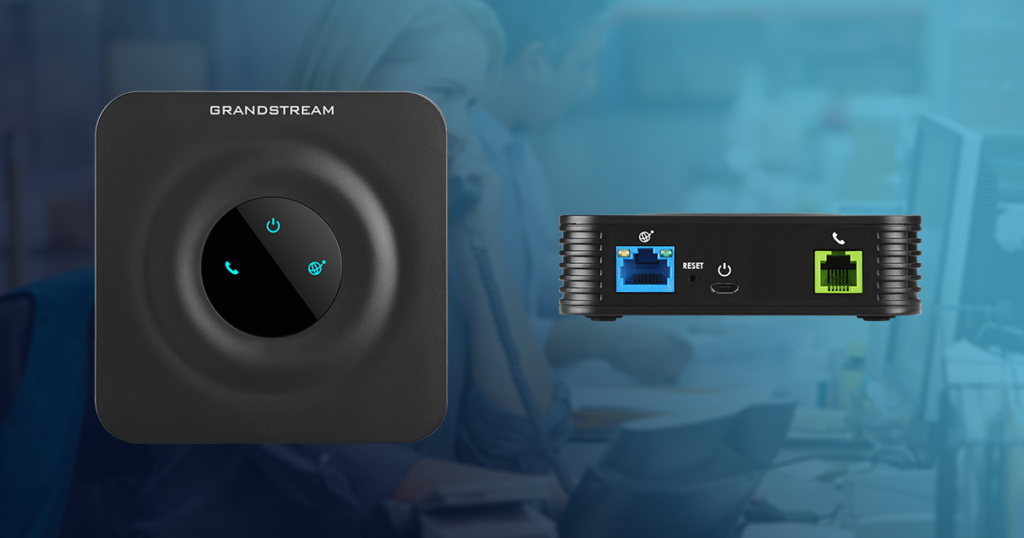
If you’re switching your home phone to VoIP, one of the most common questions is:
There’s a lot of mixed information online. Some phones are described as “VoIP compatible,” some routers have phone ports built in, and marketplaces don’t always explain the difference clearly. Today we’ll dive in and help you decide if you need a VoIP adapter.
This guide explains, in plain English:
An ATA (Analogue Telephone Adapter) is a small powered device that allows a traditional landline phone to work with a VoIP service.
Your existing home phone is analogue.
VoIP calls travel over the internet as digital data.
An ATA converts:
Think of it as a translator between your old-style phone and modern internet calling.
This is important.
An ATA is not:
It is a powered electronic device that connects to:
If it isn’t powered on, your phone will not work.
You may see standard home phones described as “VoIP compatible.”
In most cases, this simply means:
They can be used with VoIP — if you have an ATA.
A standard phone with a BT plug or that connects to a wall phone socket is still an analogue phone. It cannot plug directly into your router and work on its own.
If a phone:
It is not a true VoIP phone.
A genuine VoIP (IP) phone:
Examples include desk phones from Yealink and cordless systems from Gigaset (when used with a SIP-compatible base station).
These do not require an ATA because they already speak “internet language.”
Many modern routers now include a phone socket. This causes a lot of confusion.
Major UK providers such as BT, Sky and Virgin Media often supply routers with a built-in phone port for their own “Digital Voice” services.
However:
So even if your router has a phone socket, it does not automatically mean you can use it with any VoIP provider.
With most major UK broadband brands, third-party SIP accounts are not supported on their supplied routers.
You will need an ATA if:
You do not need an ATA if:
You need an adapter if:
You don’t need an adapter if:
If you buy a generic ATA online, you would normally need to:
For non-technical users, this can be confusing and time-consuming.
If you get an adapter from us, it comes:
Simply connect it to your router and plug in your phone — it’s ready to go.
Switching from a traditional landline to VoIP doesn’t have to be complicated.
Most people can keep their existing phones — they just need the correct equipment.
The key points to remember:
If you’re unsure, check your phone against the quick guide above or contact us and we’ll confirm what you need before you order.
We’re here to make the switch simple.
Want to avoid the hassle of selecting a VoIP phone or adapter, sign up for our residential VoIP service today and we can supply a pre-configured adapter for £50 or get in touch to find out more about phones and adapters available for business.
If your phone has a BT plug or normally connects to a wall phone socket, then yes — you will need a VoIP adapter (ATA) to use it with an internet-based phone service.
If your phone connects directly to your router using a network cable and supports SIP settings, you do not need an adapter.
In most cases, no.
Standard analogue phones cannot plug directly into a router and work on their own. They require either:
A VoIP adapter (ATA), or
A broadband router that supports and allows third-party SIP configuration
Most major broadband providers do not allow third-party VoIP accounts on their supplied routers.
Not necessarily.
Many routers from providers like BT, Sky and Virgin Media include a phone port for their own digital voice services.
These ports are usually:
Locked to the provider’s own service
Not configurable with third-party SIP details
Inactive unless their voice package is enabled
If you are using an independent VoIP provider, you will typically still need an ATA.
An ATA allows you to use a traditional analogue phone with a VoIP service.
A VoIP phone (also called an IP phone):
Connects directly to your router
Has SIP account settings built in
Does not use a BT plug
VoIP phones do not require an adapter.
Not always.
Many standard home phones are described as “VoIP compatible” simply because they can be used with an ATA.
If the phone:
Has a BT plug
Does not have an Ethernet port
Has no SIP configuration menu
It is still an analogue phone and will require an adapter.
Property management is a fast-moving business. Landlords, tenants, buyers, and sellers all expect quick responses. Every missed call could mean a missed rent payment, an unhappy tenant, or even a lost property sale.
For many estate agents and property managers, the question isn’t whether to invest in a phone system — it’s which one: stick with mobiles, or switch to VoIP?
In this guide, we’ll compare VoIP vs Mobile in detail, looking at costs, features, and how each option supports the unique needs of estate agencies and property management businesses.
(Keywords: property management communication, estate agent phone systems)
(Keywords: mobile phone systems estate agents, property managers using mobiles)
VoIP (Voice over Internet Protocol) uses the internet to make and receive calls. Instead of being tied to a mobile SIM or a landline, VoIP gives you a business phone system that works across devices — mobiles, desk phones, or even laptops.
(Keywords: VoIP phone systems, VoIP for property management, estate agent VoIP features)
| Feature | Mobile Only | VoIP Phone System (e.g. PlexaTalk) |
|---|---|---|
| Professional image | Uses personal numbers | Dedicated business numbers |
| Call routing | Not possible | Forward to team members or mobiles |
| Call recording | Rare | Built-in |
| Scalability | Each new agent needs a mobile | Add numbers/users instantly |
| Integration | No CRM connection | Sync with property management tools |
| Costs | £20–40 per mobile per month | From £1 per number per month |
| Business continuity | Calls tied to SIM | Accessible anywhere, on any device |
That’s £100+ saved every month — while gaining features mobiles simply don’t offer.
(Keywords: VoIP cost savings estate agents, affordable phone systems for property management)
With modern VoIP (like PlexaTalk), you don’t have to choose.
(Keywords: VoIP mobile app estate agents, hybrid phone systems property management)
When deciding, ask:
If the answer is yes to most of these → VoIP is the better choice.
Mobile phones are convenient, but limited. For estate agents and property managers, VoIP offers scalability, professionalism, compliance, and cost savings.
📞 Want to upgrade your property management phone system? PlexaTalk’s VoIP solutions are built specifically for estate agents — with business numbers from just £1/month, call routing, recording, and full CRM integration.
👉 Find out more here
Property managers deal with high volumes of urgent calls — from tenants reporting maintenance issues to landlords chasing updates. A professional phone system ensures no calls are missed, staff can share one number, and communication is logged for compliance.
Mobiles are flexible but tied to individuals, with no call recording or central number.
VoIP systems give your company one unified business number, call routing, and recording — so clients always reach the right person, even if staff are out of the office.
Yes. With VoIP, calls can be automatically routed to available staff, forwarded to mobiles, or sent to voicemail-to-email. That means urgent tenant issues never fall through the cracks.
Absolutely. Modern VoIP systems use encrypted communication and secure data storage. Call recording also helps protect your agency in case of disputes with tenants or landlords.
Helps settle disputes with tenants (e.g., reporting repair issues).
Provides evidence in case of legal or compliance checks.
Useful for staff training to improve customer service.
Yes. Many VoIP systems integrate with CRMs and property management software, so all call records, notes, and client details are in one place. This saves time and avoids duplication.
Yes. Business mobiles cost £20–£40 per user monthly. With VoIP, you can get numbers for as little as £1 per month and add features as needed. For a growing property management company, the savings can be significant.
Yes. VoIP allows you to set rules for after-hours calls — whether that’s forwarding to an emergency contact, using an out-of-hours call centre, or sending tenants to voicemail that’s emailed instantly to your team.
Good VoIP systems have failover options. Calls can be redirected to mobiles, ensuring your property management company doesn’t lose vital tenant or landlord communications.
Setup can be completed in as little as 24 hours. You can port existing business numbers or launch new ones instantly, making the transition seamless.
VoIP traffic is light on bandwidth — roughly 80–88 Kbps per call — but extremely sensitive to latency, jitter, and packet loss. Even a short delay can lead to echo, choppy audio, or dropped calls.
A correct draytek voip qos configuration ensures your voice packets always get top priority, even when your network is under heavy load.
This guide walks you through a draytek qos setup for VoIP on all DrayTek Vigor models, from home routers to enterprise-grade devices. We’ll cover quick methods, advanced class-based setups, firmware variations, and troubleshooting tips.
DrayTek routers manage bandwidth using Quality of Service (QoS).
For VoIP, there are two main options:
Before starting your draytek qos setup, make sure you have:
192.168.1.1)
Log into your DrayTek router at 192.168.1.1 to begin the QoS configuration process.
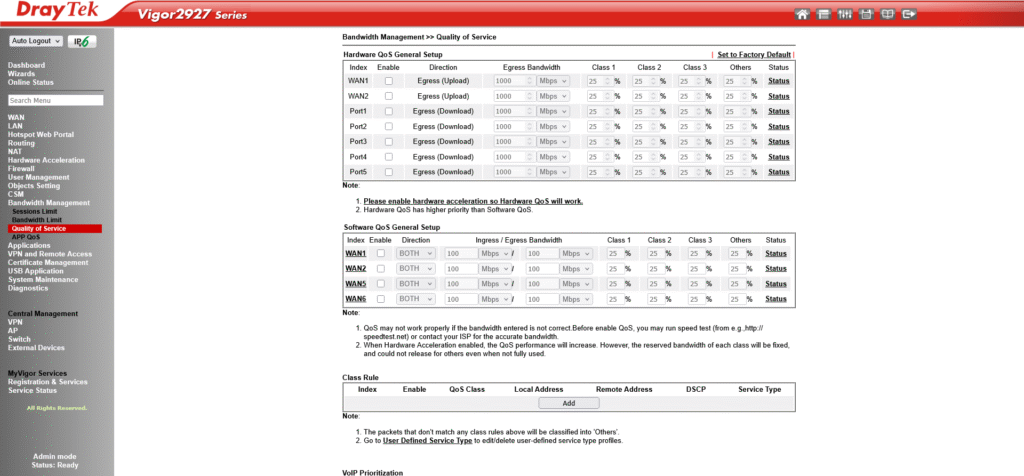
Enable QoS for the WAN interface carrying VoIP traffic, then set accurate inbound/outbound bandwidth values.
Steps:
💡 Tip: Incorrect speeds will break QoS effectiveness.
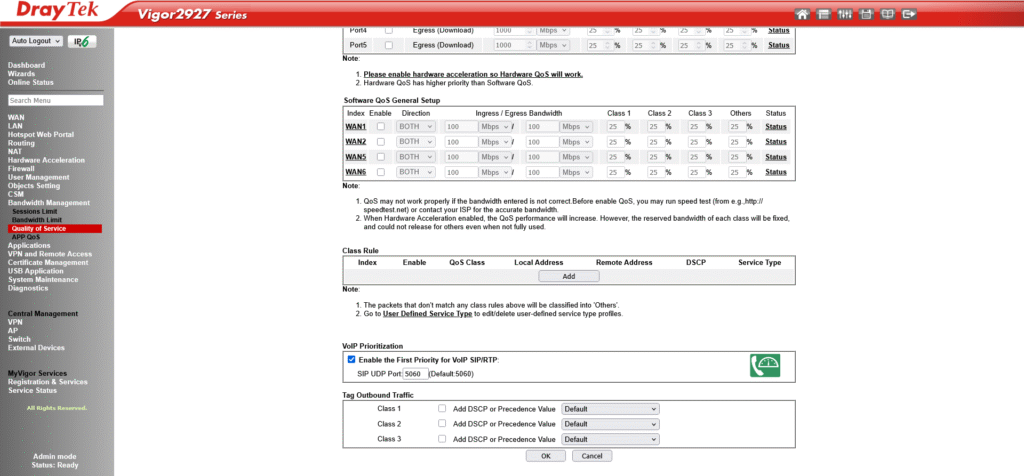
Enable “First Priority for VoIP” to automatically reserve bandwidth for SIP and RTP traffic.
Steps:
How it works:
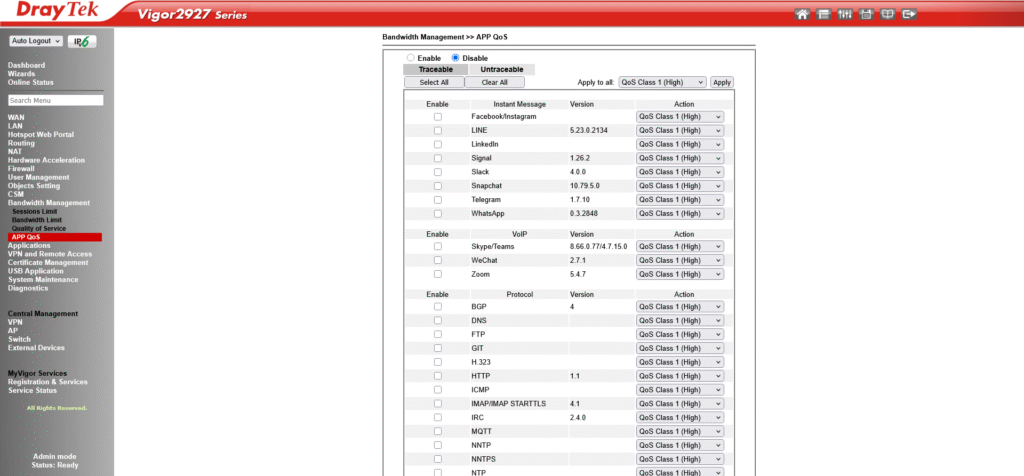
Use App QoS to assign VoIP traffic to a high-priority class for more granular control.
CLI Commands (Telnet/SSH):
qos setup -I [value]  # Min download bandwidth for non-VoIP traffic
qos setup -O [value]  # Min upload bandwidth for non-VoIP traffic
qos setup -v 1        # Apply limits immediately when VoIP detected
DSCP Tagging:
If your phones mark packets with DSCP EF (46), enable DSCP-based QoS to automatically prioritise them.
VLAN Segregation:
Place VoIP devices on their own VLAN and apply per-VLAN QoS rules.
If calls are still choppy:
If rules don’t match traffic:
Whether you choose the quick First Priority option or a custom class-based draytek qos setup, these steps will ensure your draytek voip qos configuration delivers crystal clear calls under any network load.
DrayTek VoIP QoS is a Quality of Service configuration that prioritises SIP and RTP voice traffic on your network, ensuring clear and stable calls even when other devices are using bandwidth heavily.
To set up VoIP QoS on a DrayTek router, log in to the web interface, enable QoS for the WAN interface, set accurate bandwidth values, and either enable “First Priority for VoIP” or configure class-based rules for SIP and RTP traffic.
First Priority for VoIP is faster to set up and works well for most home and small office setups. Class-based QoS offers more control, letting you prioritise multiple traffic types alongside VoIP.
Most VoIP providers use SIP on UDP port 5060 and RTP on UDP ports 16384–32767. Always confirm the exact ports with your provider before setting up QoS rules.
Yes. Once enabled, your DrayTek QoS setup will manage traffic for all devices on the network, prioritising VoIP packets while controlling lower-priority traffic during congestion.
If you’re having call issues it may also be NAT issues such as SIP ALG issues or because you haven’t enabled rport.
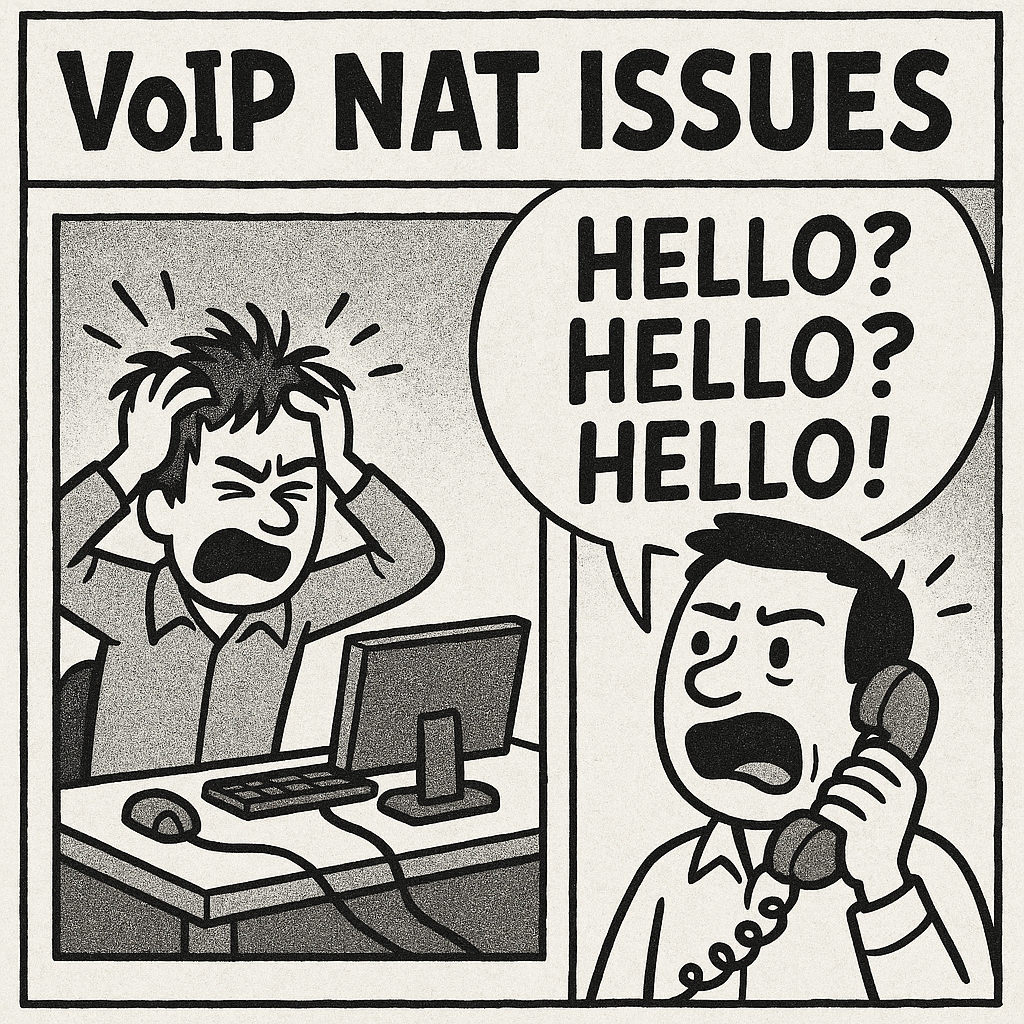
If you’ve ever experienced choppy VoIP calls, conversations where the other person can’t hear you, or the dreaded “dead silence” when you answer the phone, there’s a good chance you’ve run into one of the most common yet least obvious culprits: SIP ALG. This router feature, often buried deep in the settings, can cause symptoms like calls cutting off mid-sentence, no inbound calls ringing through, or frustrating one-way audio issues.
The problem? Many routers ship with SIP ALG enabled by default. While it was designed to help with VoIP call setup and NAT traversal, in practice it often rewrites data in a way that breaks more than it fixes. Most VoIP providers recommend disabling SIP ALG for a smoother, more reliable calling experience.
Think of it as a “helpful” friend who keeps rewriting your letters before they get sent—sometimes they improve the message, but more often they just make it unreadable.
Plain English:
SIP ALG stands for Session Initiation Protocol Application Layer Gateway. It’s a router feature designed to help VoIP calls work behind firewalls and NAT (Network Address Translation) by inspecting and altering SIP packets as they pass through. In theory, it’s supposed to make sure your phone system can connect smoothly to the internet by “fixing” the addressing inside those packets.
Technical:
SIP ALG operates at the application layer, intercepting SIP signalling traffic, rewriting packet headers, and modifying the SDP (Session Description Protocol) payload. The intention is to solve NAT traversal problems by ensuring that private IP addresses inside SIP messages are replaced with the public IP of the router. Unfortunately, in many implementations, this process is buggy or overly aggressive, leading to broken call setup, missing audio streams, and dropped connections.
It’s worth noting that there are alternative, cleaner ways to handle NAT traversal without rewriting SIP headers at all. For example, rport ensures NAT reply routing is maintained while leaving the original SIP message intact—avoiding many of the problems caused by SIP ALG.
SIP ALG wasn’t invented to make life harder for VoIP users—it was originally designed to solve very real networking challenges. In certain environments, especially those with symmetrical NAT or with SIP servers that lack built-in NAT traversal mechanisms, VoIP traffic can fail outright without some form of packet modification.
By intercepting SIP signalling and rewriting the addresses inside, SIP ALG can, in theory, help phones and PBXs register successfully, even when they’re sitting behind tight corporate firewalls or in networks where the router is the only device aware of the public IP. In some rare edge cases—such as legacy SIP servers that aren’t NAT-aware—it can be the difference between a working call and no call at all.
These scenarios are increasingly uncommon thanks to modern SIP servers and features like STUN, ICE, and rport, but they do still exist. Knowing when SIP ALG helps—and when it hurts—separates network troubleshooting guesswork from informed, precise fixes.
While SIP ALG is meant to help, in practice it often causes more problems than it solves. Here are the most common ways it disrupts calls:
SIP ALG is just one approach to solving NAT traversal issues—but it’s also the most invasive, since it rewrites packet data in-flight. Modern VoIP environments typically use less disruptive, standards-based methods. Here’s how they compare:
Why These Alternatives Work Better
Where SIP ALG modifies SIP messages on the fly—risking broken headers and mangled media paths—tools like rport, STUN, and TURN operate within established SIP and RTP standards. They focus on ensuring packets reach their destination without altering the original signalling content.
For example, rport is specifically designed to fix reply routing issues by letting the server send responses to the correct external port, all without rewriting your SIP headers. STUN and keep-alives help devices maintain accurate connection details, while TURN and outbound proxies handle more restrictive environments by providing controlled relay points.
Together, these techniques provide reliable NAT traversal without the unpredictable side effects that make SIP ALG infamous in VoIP troubleshooting.
For most modern VoIP setups, the safest and most reliable configuration is to turn off SIP ALG and enable standards-based NAT traversal tools instead. Here’s the checklist we recommend:
If you use Plexatalk preconfigured phones or adapters, SIP ALG is already off and NAT-friendly settings like rport, STUN, and keep-alives are enabled by default—no manual tweaks needed. That means you can skip the guesswork and get straight to clear, reliable calls. This being said… your router may have SIP ALG turned on.
Disabling SIP ALG varies by router brand. Use the links below to jump directly to your model’s instructions:
Netgear | TP-Link | Asus | DrayTek | Mikrotik | BT Hub | Virgin Hub | Others
192.168.0.1 or 192.168.1.1).192.168.0.1).192.168.1.1).Some routers don’t expose a toggle for SIP ALG, or their “off” setting still interferes with VoIP. If you can’t disable it, try these proven workarounds:
Good to know: Plexatalk supplies VoIP-friendly routers and adapters preconfigured — SIP ALG is off and NAT-safe settings (rport, STUN/keep-alives, outbound proxy) are enabled, so you don’t need to tweak anything.
Although SIP ALG was never designed as a security feature, its packet inspection and modification can have knock-on effects for network security — both positive and negative.
Potential Benefits
Security Risks
The takeaway? SIP ALG is not a replacement for VoIP security best practices. Proper security comes from TLS/SRTP encryption, strong authentication, and well-configured firewalls. If anything, disabling SIP ALG and relying on standards-compliant NAT traversal tools gives you a more predictable, auditable security posture.
Case 1 – The Legacy PBX in a Corporate LAN
A manufacturing company still ran an early-2000s SIP-based PBX that had no NAT awareness. With symmetrical NAT in place, calls simply failed without ALG rewriting headers. In this scenario, enabling SIP ALG restored basic call functionality — though long-term, replacing the PBX was the real fix.
Case 2 – The Modern Hosted VoIP Deployment
A marketing agency moved to a cloud VoIP service with rport, STUN, and keep-alives already enabled by the provider. SIP ALG was left on in their Netgear router, resulting in intermittent one-way audio and dropped calls. Disabling ALG fixed the issue immediately — no other changes needed.
Case 3 – The ISP-Locked Router
A small business using an ISP-supplied hub found SIP ALG could not be disabled. Outbound calls worked, but inbound calls often went straight to voicemail. Switching the hub to modem mode and adding a VoIP-friendly router with ALG disabled resolved the problem and improved call quality.
These examples underline the rule of thumb: ALG can help in very specific, usually outdated setups, but it’s far more likely to interfere in modern VoIP environments.
No. Many consumer and ISP-supplied routers include SIP ALG (often enabled by default), but not all do, and implementations vary widely between brands and firmware versions.
Generally, no. Disabling SIP ALG simply stops the router from rewriting SIP/SDP messages. Other services are unaffected. If your network relied on ALG to work around strict NAT, you can use rport, STUN, keep-alives, or your VoIP provider’s outbound proxy instead.
No. SIP ALG actively modifies SIP traffic, whereas SIP passthrough usually means the router allows SIP traffic to pass untouched or opens related ports. Some vendors confuse the terminology, so check whether the feature rewrites headers—if it does, it’s effectively ALG.
Sometimes. Some ISP routers allow support staff to disable ALG remotely or enable modem/bridge mode. Others don’t offer this option at all. If they can’t switch it off, use your own VoIP-friendly router in place of—or in addition to—the ISP’s equipment.
It can affect both. SIP controls call setup for voice and video, and RTP carries the media streams. SIP ALG header or SDP rewriting can cause one-way audio, frozen video, or failed call setup for either media type.
It was originally intended to help older SIP systems that couldn’t handle NAT traversal on their own. Many manufacturers still enable it by default for “compatibility,” even though modern VoIP setups work better without it.
Typical symptoms include one-way audio, calls dropping after a fixed time, missed inbound calls, and registration failures. You can confirm by disabling SIP ALG temporarily and testing call quality—or by using a packet capture to see if headers are being rewritten.
Using rport, STUN, keep-alives, or your provider’s outbound proxy. These methods comply with SIP standards and maintain NAT traversal without altering SIP signalling content.
No. Some routers (especially ISP-branded ones) don’t provide a SIP ALG toggle. In those cases, you can use modem/bridge mode, replace the router, or use workarounds like TLS encryption for signalling.
No. SIP ALG is not a security feature—it’s a NAT traversal helper. It doesn’t encrypt calls or protect against attacks; in fact, it can reduce reliability by modifying packets unexpectedly.
SIP ALG was created to solve older networking problems, but in today’s VoIP environments it’s more often a source of dropped calls, one-way audio, and frustrating troubleshooting sessions. While it can help in rare edge cases, most modern systems work best when SIP ALG is disabled and standards-based NAT traversal tools take its place.
With Plexatalk, you can skip the headaches. We supply preconfigured, tested hardware with SIP ALG disabled and NAT-safe settings enabled, including rport, STUN, keep-alives, and outbound proxy support. That means your VoIP setup works reliably right out of the box — even on tricky networks.
Contact us if you want a VoIP solution that works from day one, without the trial-and-error.
If you’ve ever set up VoIP and run into problems where:
…then you’ve likely encountered a NAT traversal issue.
NAT (Network Address Translation) is what most home and office routers use to let multiple devices share one public IPv4 address. It’s great for security and address conservation, but it changes packet headers in ways that can confuse SIP — the protocol VoIP uses to set up calls.
When SIP gets confused, call signalling packets can vanish, incoming calls fail to arrive, and audio streams may get lost.
That’s where the rport parameter comes in. Defined in RFC 3581, it’s a small change in SIP behaviour that can make the difference between unreliable and rock-solid VoIP.
At Plexatalk, most customers never need to think about rport. We preconfigure the phones and VoIP adapters we supply so they’re ready for NAT handling from the moment you plug them in. But if you’re bringing your own device, using a third-party softphone, or troubleshooting another provider’s service, understanding rport can save you hours of frustration.
In plain English:
rporttells a SIP server to send responses back to the IP address and port that your request actually came from — not the ones written in your SIP headers.
This matters because behind NAT, your device’s internal IP and port (e.g., 192.168.1.50:5060) are not reachable from the internet. Your provider needs to send packets to your router’s public IP and the actual source port NAT assigned (e.g., 81.2.3.4:32415).
Without rport, the server may try to send packets to your private address — and those packets never make it back.
RFC 3581 definition (simplified):
The
rportparameter requests that the server send the response back to the source IP address and port from which the request originated.
Example of rport in a SIP Via header:
Without rport:
Via: SIP/2.0/UDP 192.168.1.50:5060;branch=z9hG4bK-123456
With rport:
Via: SIP/2.0/UDP 192.168.1.50:5060;branch=z9hG4bK-123456;rport
When you’re on a public IP:
Via: header.Everything works fine because the address in the header is valid.
Behind NAT:
192.168.1.50:5060.81.2.3.4:32415).81.2.3.4:32415 but still reads 192.168.1.50:5060 in the Via: header.If the server replies to 192.168.1.50:5060, the packet never arrives — NAT doesn’t know where to send it.
With rport:
;rport (empty) to its Via: header.32415).That means the NAT device can forward the packet back to your phone.
RFC 3581 introduced Symmetric Response Routing for SIP over UDP.
rport present but empty.rport parameter with the observed port.In a chain of SIP proxies:
received= parameter (observed IP) to the Via: header.rport is present, it also appends the observed port.Before processing:
Via: SIP/2.0/UDP 192.168.1.50:5060;branch=z9hG4bK-111111;rport
After proxy sees packet from 81.2.3.4:32415:
Via: SIP/2.0/UDP 192.168.1.50:5060;branch=z9hG4bK-111111;received=81.2.3.4;rport=32415
rport is not a cure-all. It:
Does not replace the need for an outbound proxy in some complex topologies.
Does not solve RTP (media) traversal — you still need STUN, TURN, ICE, or symmetric RTP.
Does not keep NAT bindings open — use SIP keep-alives or periodic REGISTERs for that.
If you’re using Plexatalk-supplied hardware (ATAs, IP phones), rport is already set.
If you bring your own device or app, your VoIP provider or even us depending on config – might recommend enabling rport if you:
Without rport:
Via: 192.168.1.50:5060.81.2.3.4:32415.192.168.1.50:5060 — lost.With rport:
Via: 192.168.1.50:5060;rport.81.2.3.4:32415.rport=32415, replies to 81.2.3.4:32415 — delivered.Plexatalk ships VoIP devices pre-tuned for UK ISPs and NAT environments. That includes:
You plug in, it works.
If you bring your own hardware, we’ll guide you — but preconfigured gear removes guesswork.
rport is a SIP parameter defined in RFC 3581 that tells a VoIP server to send responses to the IP address and port where your request actually came from, instead of relying on the internal IP and port in your SIP headers. It helps SIP signalling work correctly when your device is behind NAT.
Without rport, SIP servers may send call signalling to your device’s private IP address, which can’t be reached from the internet. This can cause missed calls, one-way audio, or dropped registrations. rport ensures replies go to your real public IP and NAT-mapped port.
Not directly. rport only affects SIP signalling (call setup messages), not the RTP media stream that carries voice. For audio issues, you may also need to configure STUN, TURN, ICE, or symmetric RTP.
In most cases, yes — it’s safe and can improve reliability. If you’re a Plexatalk customer using our supplied phones or VoIP adapters, rport is already enabled. If you’re using your own device or softphone, you may need to turn it on in the SIP settings.
No. rport is a low-risk setting that usually improves NAT compatibility. Disabling it is more likely to cause issues than enabling it.
No. rport is complementary to other NAT traversal tools. STUN helps discover your public IP/port mapping, while keep-alives maintain NAT bindings. For best reliability, use them together.
Your provider may ask for rport if you’re experiencing inbound call issues, using mobile broadband, behind double NAT, or moving between Wi-Fi and mobile networks.
Not if you use our preconfigured hardware — it’s already set. If you bring your own device, we’ll guide you through enabling rport along with other recommended NAT-friendly settings.