
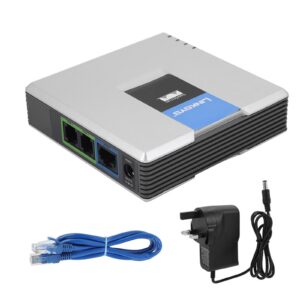
The Linksys PAP2T is one of the most popular analogue telephone adapters (ATAs) ever made, allowing you to connect a standard analogue telephone to a modern VoIP service. Although it’s now a legacy device, it still delivers excellent call quality and is an ideal choice if you already own one.
This guide shows you how to configure a Linksys PAP2T for use with Plexatalk. It should also work for the Linksys PAP2, SPA1001, SPA2100, SPA2102, SPA3000 and SPA3102, as they all use very similar firmware. The Cisco SPA112 also shares many of the same settings, although some menu names and layouts differ slightly.
Before You Start
Important
The Linksys PAP2T is a discontinued product that only supports SIP over UDP. It does not support SIP over TCP or SIP over TLS, meaning it cannot be used with providers that require encrypted SIP signalling. This may be a problem if you can’t disable SIP ALG on your router and have it enabled.
As these devices have been out of production for many years, most available today are used, refurbished or old stock. Unfortunately, counterfeit units also exist, so we recommend purchasing from a reputable supplier.
This guide assumes the adapter has been reset to its factory defaults.
You’ll also need the following information from Plexatalk:
- SIP Server (Proxy)
- SIP Username/User ID/Extension
- SIP Password
Step 1 – Find the IP Address
Before you can configure the PAP2T, you’ll need to access its web interface.
- Connect an analogue telephone to the Phone 1 port.
- Lift the handset.
- Dial:
****
- Then dial:
110#
- The PAP2T will read out its IP address.
Make a note of the IP address.
Step 2 – Log into the Web Interface
Open a web browser on a computer connected to the same network as the PAP2T.
Enter the IP address into the address bar, for example:
http://192.168.1.25
If prompted, enter the administrator password.
(Some PAP2T adapters do not have a password configured by default.)
If you see Admin Login in the top-right corner, click it.
Next, click Advanced View.
You should now see additional tabs including SIP, Regional, Line 1 and Line 2.
Step 3 – Configure SIP Settings
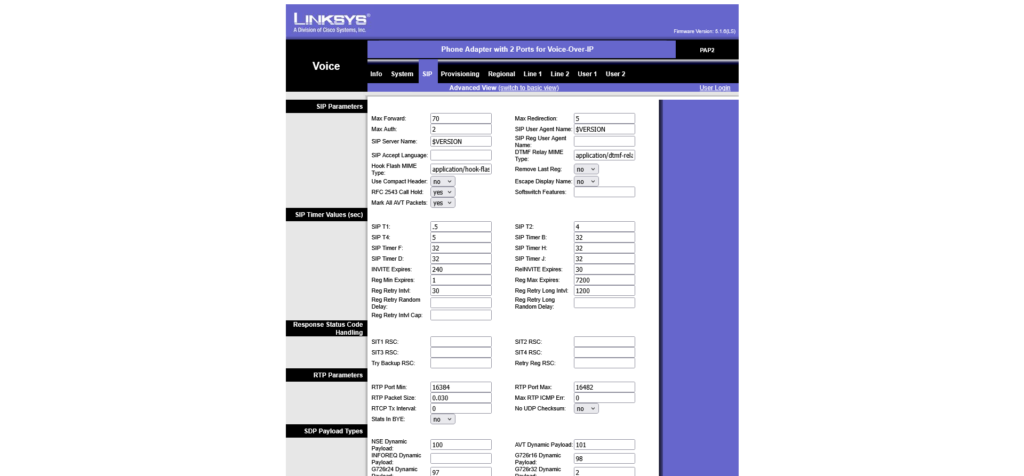
Select the SIP tab.
Change the following settings from No to Yes.
| Setting | Value |
|---|---|
| Handle VIA received | Yes |
| Handle VIA rport | Yes |
| Insert VIA received | Yes |
| Insert VIA rport | Yes |
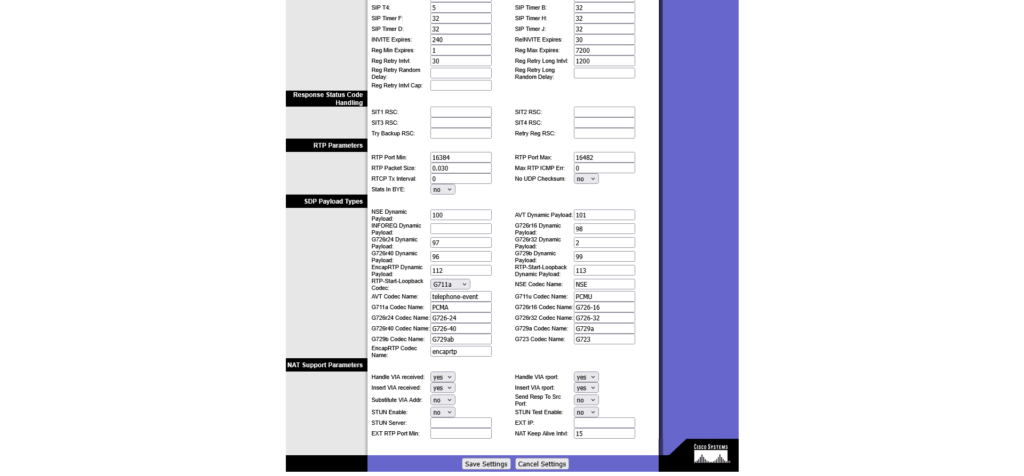
While you’re still on this page, locate the codec settings and change the preferred codec from G711u to G711a.
G.711 A-law is the standard codec used across the UK and Europe and provides the best compatibility and call quality with Plexatalk.
Click Save Settings.
Step 4 – Configure UK Regional Settings
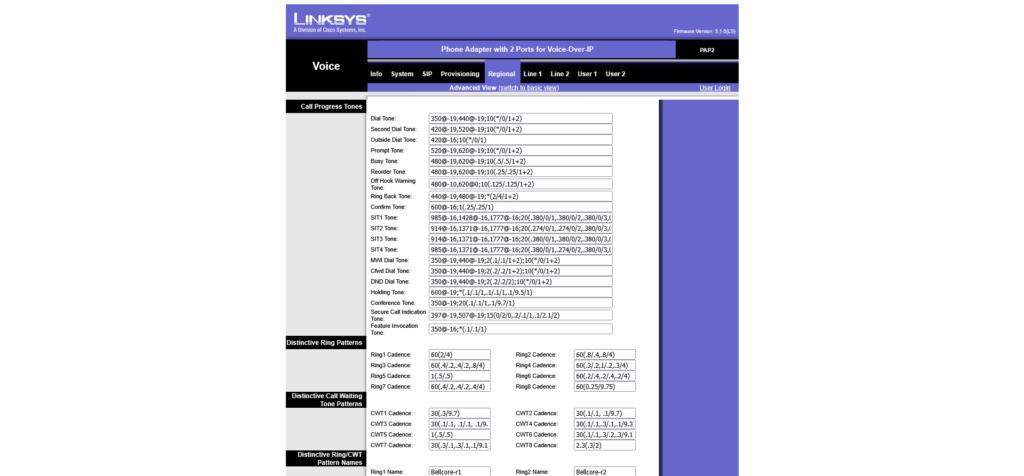
The PAP2T defaults to North American telephone tones like the screenshot above. To make it sound like a standard UK telephone line, click the Regional tab and update the following settings.
Call Progress Tones
| Setting | UK Value |
|---|---|
| Dial Tone | 350@-19,440@-19;30(*/0/1+2) |
| Second Dial Tone | 420@-19,520@-19;30(*/0/1+2) |
| Outside Dial Tone | 420@-16;10(*/0/1) |
| Prompt Tone | 520@-19,620@-19;10(*/0/1+2) |
| Busy Tone | 400@-20;10(.375/.375/1) |
| Reorder Tone | 400@-19;20(*/0/1) |
| Ring Back Tone | 400@-20,450@-20;*(.4/.2/1+2,.4/2/1+2) |
| Confirm Tone | 600@-16;1(.25/.25/1) |
| MWI Dial Tone | 350@-19,440@-19;8(.1/.1/1+2);10(*/0/1+2) |
| Cfwd Dial Tone | 350@-19,440@-22;10(.75/.75/1+2) |
| DND Dial Tone | 350@-19,440@-22;10(.80/.75/1+2) |
| Holding Tone | 600@-19;*(.1/.1/1,.1/.1/1,.1/2.2/1) |
| Conference Tone | 350@-19;20(.1/.1/1,.1/9.7/1) |
| Secure Call Indication Tone | 397@-19,507@-19;15(0/2/0,.2/.1/1,.1/2.1/2) |
| Feature Invocation Tone | 350@-16;*(.1/.1/1) |
| SIT1 Tone | 985@-16,1428@-16,1777@-16;20(.380/0/1,.380/0/2,.380/0/3,0/4/0) |
| SIT2 Tone | 914@-16,1371@-16,1777@-16;20(.274/0/1,.274/0/2,.380/0/3,0/4/0) |
| SIT3 Tone | 914@-16,1371@-16,1777@-16;20(.380/0/1,.380/0/2,.380/0/3,0/4/0) |
| SIT4 Tone | 985@-16,1371@-16,1777@-16;20(.380/0/1,.274/0/2,.380/0/3,0/4/0) |
| Off Hook Warning Tone | 480@-10,620@-16,1400@0,2060@0,2450@0,2600@0;60(.2/0/1,.2/0/2);240(.1/.1/3+4+5+6) |
Miscellaneous
Change the following setting:
| Setting | Value |
|---|---|
| Caller ID Method | ETSI FSK With PR (UK) |
Click Save Settings.
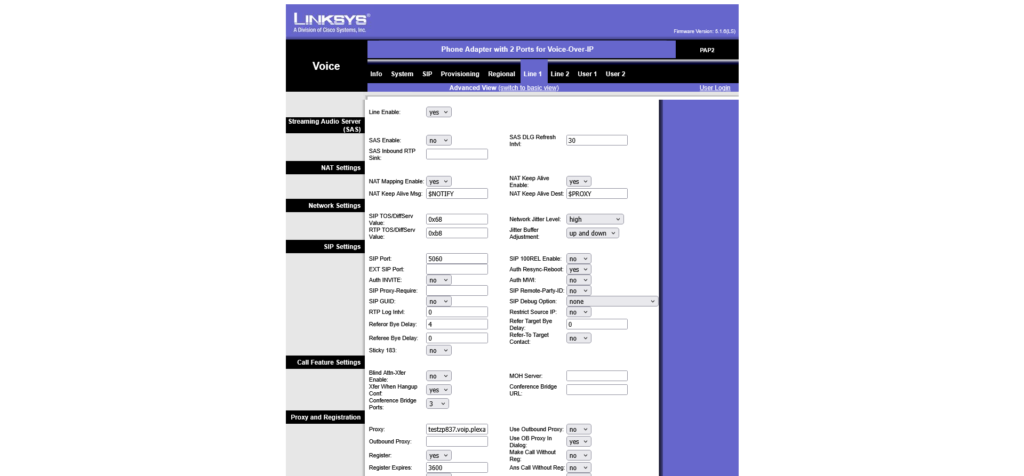
Step 5 – Configure Line 1
Click the Line 1 tab.
NAT Settings
| Setting | Value |
|---|---|
| NAT Mapping Enable | Yes |
| NAT Keep Alive Enable | Yes |
Proxy and Registration
| Setting | Value |
|---|---|
| Proxy | Your Plexatalk SIP server (e.g. testzp837.voip.plexatalk.co.uk) |
| Outbound Proxy | Leave Blank |
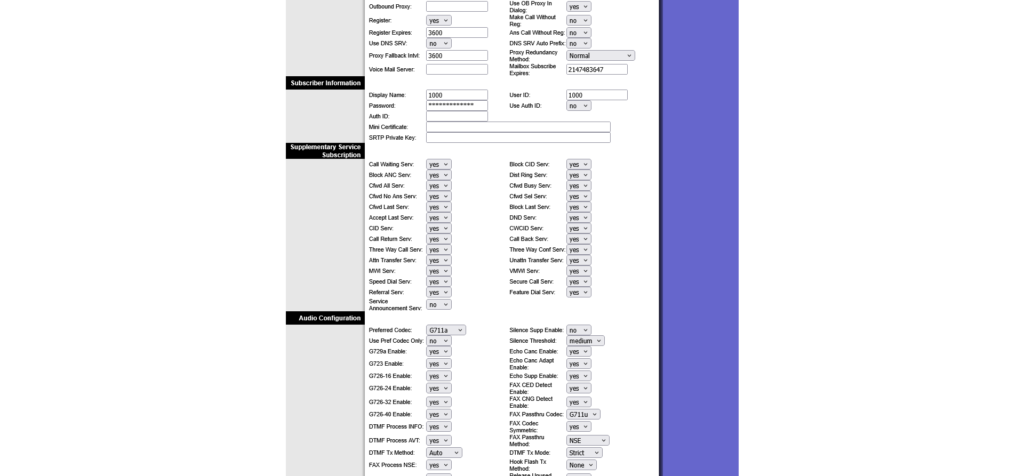
Subscriber Information
| Setting | Value |
|---|---|
| Display Name | Your extension number or telephone number |
| User ID | Your Plexatalk User ID |
| Password | Your Plexatalk SIP Password |
Further down the page, locate the audio codec settings and change:
| Setting | Value |
|---|---|
| Preferred Codec | G711a |
Leave all other Line 1 settings at their default values unless instructed otherwise by Plexatalk.
Click Save Settings.
Step 6 – Configure Line 2 (Optional)
If you want to use the second telephone port on the PAP2T, click the Line 2 tab and repeat the same configuration using the credentials for your second Plexatalk extension.
If you only need one telephone, you can leave Line 2 unconfigured.
Step 7 – Reboot the Adapter
Once you’ve finished configuring the PAP2T, disconnect the power for around 10 seconds before reconnecting it.
Within a minute, the Phone 1 LED should illuminate and the adapter should register with the Plexatalk platform.
You can now make a test outbound call and then call the number back to confirm inbound calls are working correctly.
Troubleshooting
The PAP2T won’t register
Check the following:
- The SIP server (Proxy) is entered correctly.
- Your User ID and Password match the credentials supplied by Plexatalk.
- NAT Mapping Enable and NAT Keep Alive Enable are both set to Yes.
- Your router has an active internet connection.
Reboot the adapter after making any configuration changes.
I can’t access the web interface
Dial:
****
110#
again to confirm the IP address hasn’t changed.
Calls have no audio or only one-way audio
Verify that:
- G711a is selected as the preferred codec.
- NAT Mapping Enable is enabled.
- NAT Keep Alive Enable is enabled.
- Turn off SIP-ALG on your router – it may be on and locked down by your ISP, in which case you’ll need a different router or adapter that supports TLS.
Registration fails even though my username and password are correct
If your PAP2T still won’t register after checking your SIP credentials, there are a few additional settings worth checking.
Try using a public DNS server
Some ISP-provided DNS servers can occasionally have difficulty resolving SIP server hostnames quickly or reliably. If you’re using a hostname such as testzp837.voip.plexatalk.co.uk, try configuring a public DNS server on the PAP2T.
Navigate to the System tab and set:
| Setting | Value |
|---|---|
| Primary DNS | 1.1.1.1 |
| Secondary DNS | 1.0.0.1 |
Alternatively, you can use Google’s DNS servers:
| Setting | Value |
|---|---|
| Primary DNS | 8.8.8.8 |
| Secondary DNS | 8.8.4.4 |
Click Save Settings when finished.
Check the Date and Time
An incorrect system clock can also cause unexpected behaviour on some firmware versions.
On the System tab, verify that the time zone is correct and that the adapter is successfully synchronising with an NTP (Network Time Protocol) server.
For UK users, we recommend:
| Setting | Value |
|---|---|
| Time Zone | GMT (or GMT/BST depending on firmware version) |
| NTP Server | pool.ntp.org |
After changing either the DNS or time settings, reboot the PAP2T and allow a minute for it to register.
FAQ – Configure a Linksys PAP2T
Does this guide only work with the PAP2T?
No. The menus are almost identical on the Linksys PAP2, SPA1001, SPA2100, SPA2102, SPA3000 and SPA3102. The Cisco SPA112 also uses similar settings, although some options appear in different locations.
Does the PAP2T support TLS?
No. The PAP2T only supports SIP over UDP and cannot register to providers that require SIP over TLS or TCP.
Can I use both phone ports?
Yes. Simply configure Line 1 and Line 2 using separate Plexatalk extensions.
Is the PAP2T still worth it?
If you already own one, absolutely. The PAP2T still offers excellent voice quality for standard analogue telephones. However, because it is a discontinued product with no TLS support, we recommend a newer ATA for new installations where long-term support and encrypted SIP are required.
Why am I only getting one-way audio?
If you can hear the other person but they can’t hear you (or vice versa), the most common cause is SIP ALG (Application Layer Gateway) on your router.
The Linksys PAP2T only supports SIP over UDP, and some routers attempt to “help” VoIP traffic by rewriting SIP packets as they pass through the router. Unfortunately, SIP ALG often causes more problems than it solves, resulting in one-way audio, calls dropping after a few seconds or failed registrations.
If your router allows it, disable SIP ALG and then reboot both the router and the PAP2T. Also ensure NAT Mapping Enable and NAT Keep Alive Enable are both enabled on the PAP2T.
If your router doesn’t provide an option to disable SIP ALG, you may need to use a different router or a newer VoIP adapter that supports SIP over TLS.
Why isn’t my PAP2T working with Three Broadband?
Some Three Broadband routers have SIP ALG permanently enabled, with no option to disable it. Because the Linksys PAP2T only supports SIP over UDP, the router may interfere with SIP signalling, causing problems such as:
Registration failures
One-way audio
Calls disconnecting unexpectedly
Intermittent call quality issues
This behaviour varies depending on the generation of Three router you have. Some models work perfectly, while others have a forced SIP ALG implementation that cannot be disabled.
If you’re experiencing these issues on Three Broadband, the easiest solution is usually to use your own third-party router or upgrade to a modern ATA or IP phone that supports SIP over TLS, which is generally unaffected by SIP ALG issues.
Linksys PAP2T – Configuration
Despite being over a decade old, the Linksys PAP2T remains a reliable and capable analogue telephone adapter. With the correct UK regional settings and Plexatalk configuration, it continues to provide excellent voice quality while allowing you to keep using your existing analogue telephones.
If you’re looking for a more modern alternative with ongoing firmware updates and support for SIP over TLS, our team can also recommend newer ATAs and IP phones that work seamlessly with the Plexatalk platform.