
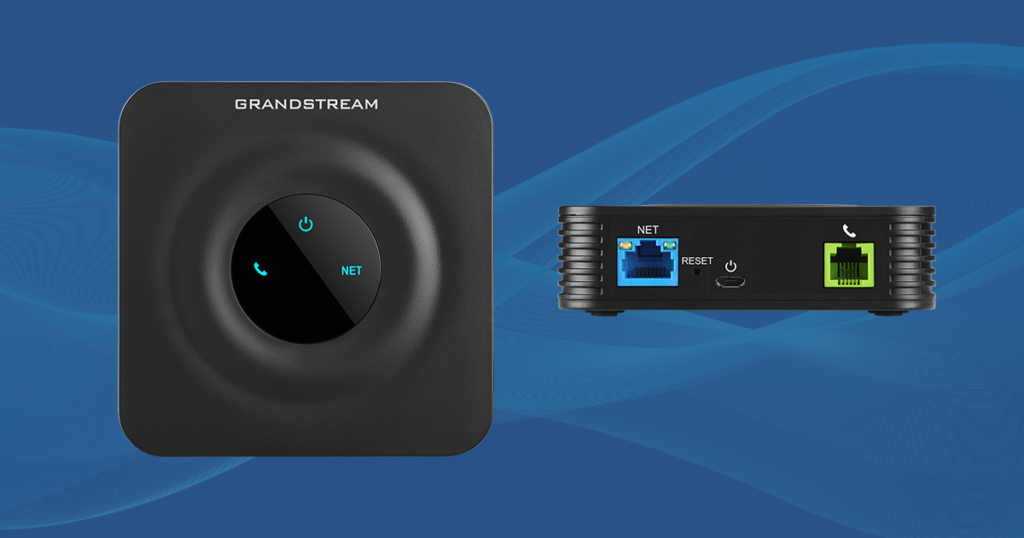
The Grandstream HT801 V2 is an analogue telephone adapter (ATA) that allows you to connect a traditional analogue telephone to our SIP telephone service.
This guide will walk you through connecting your HT801 V2, finding its IP address, logging into the configuration page, and entering the SIP account details supplied by us.
What you’ll need
Before you begin, you’ll need the SIP account details we have supplied to you:
- Extension / SIP User ID – for example,
1000 - SIP Password
- SIP Server
- Connection Type – UDP, TCP or TLS
Please enter these details exactly as supplied. In particular, passwords are case-sensitive.
You’ll also need:
- Your Grandstream HT801 V2
- An analogue telephone
- An Ethernet cable
- Access to your Internet router/network
- A computer, tablet or phone connected to the same network
Step 1: Connect your Grandstream HT801 V2
First, connect the HT801 V2 to your network.
Connect an Ethernet cable between the network/Ethernet port on the HT801 V2 and your router or network.
Next, connect your analogue telephone to the PHONE socket on the HT801 V2.
Finally, connect the power supply.
Allow the HT801 V2 a few minutes to start up before continuing.
Step 2: Find the IP address of your HT801 V2
To configure the adapter, you’ll first need to find its IP address.
Pick up the telephone connected to the HT801 V2 and dial:
***
You should hear a voice prompt asking you to enter a menu option.
Dial:
02
The HT801 V2 will read its current IP address aloud.
For example, you might hear:
192.168.1.123
Make a note of this address, as you’ll need it in the next step.
Step 3: Open the Grandstream configuration page
Using a computer, tablet or phone connected to the same network as the HT801 V2, open your web browser.
Enter the IP address you obtained in the previous step into the browser’s address bar.
For example:
Your browser may display a security or privacy warning when connecting directly to the adapter. If this happens, use your browser’s option to continue to the device.
You should then see the Grandstream login page.
Step 4: Find the Grandstream admin password
The password required at this stage is not the SIP password supplied by us.
The HT801 V2 has its own administrator password, which can be found on the label on the underside of the adapter.
Look for the device’s admin/password information on the label.
At the Grandstream login page, enter:
Username: admin
Password: The administrator password printed on the adapter
Enter the password exactly as printed, including the correct upper and lower-case letters.
Important: there are two different passwords
It’s easy to confuse the two passwords used during this setup.
The password printed on the HT801 V2 is used to log into the Grandstream configuration page.
The SIP password supplied by us is used later to connect the adapter to our telephone service.
They are not interchangeable.
Step 5: Enter your SIP account details
Once you’ve logged into the Grandstream interface, navigate to:
Port Settings → FXS PORT 1 → General Settings
Under the Account Registration section, enter the SIP details supplied by us.
For example:
Profile Active / Account Active: Enabled / Yes
Primary SIP Server: Your supplied SIP server
SIP User ID: Your supplied extension, e.g. 1000
Authenticate ID: Your supplied extension, e.g. 1000
Authenticate Password: Your supplied SIP password
Unless we have specifically supplied an Outbound Proxy or Failover SIP Server, these fields can normally be left blank.
Other settings should generally be left at their default values unless we have instructed you to change them.
Step 6: Select UDP, TCP or TLS
Next, navigate to:
Port Settings → FXS PORT 1 → SIP Settings
Locate the SIP Transport setting.
Set this to the connection type shown in the account details supplied by us:
- For UDP, select UDP
- For TCP, select TCP
- For TLS, select TLS
Make sure you select the connection type we supplied, as using a different transport may prevent the adapter from registering.
Unless we have provided additional settings, leave the remaining SIP options at their defaults.
Step 7: Save your configuration
Once you’ve entered the details, click:
Save and Apply
Give the HT801 V2 a short time to apply the settings and connect to our service.
If necessary, restart the adapter after saving the configuration.
Step 8: Check that your phone is registered
You can check whether the HT801 V2 has successfully connected to our service from the Grandstream interface.
Navigate to:
Status → Port Status
Find the registration status for FXS1.
If everything has been configured correctly, the status should show:
Registered
Your telephone should now be ready to use.
Pick up the handset and try making a call.
What if the HT801 V2 says “Not Registered”?
If the status shows Not Registered, don’t worry. In most cases this is caused by a simple configuration error.
Check the following:
- Make sure the Primary SIP Server exactly matches the SIP server supplied by us.
- Make sure the SIP User ID matches your supplied extension.
- Make sure the Authenticate ID matches your supplied extension.
- Re-enter the Authenticate Password carefully, remembering that passwords are case-sensitive.
- Make sure you have entered the SIP password supplied by us, rather than the admin password printed on the adapter.
- Check that SIP Transport is set to the connection type we supplied: UDP, TCP or TLS.
- Check that the Ethernet cable is connected correctly.
- Make sure the HT801 V2 has access to the Internet.
- Check that no extra spaces have accidentally been added before or after the server, username or password.
After making any changes, click Save and Apply and allow the adapter a short time to register again.
Optional: Configure the Ring Cadence
You can optionally change the HT801 V2’s ring cadence to alter the pattern used when your telephone rings.
This is not required for the SIP service to work, so if you’re happy with the way your phone currently rings, you can leave this setting unchanged.
In the Grandstream configuration interface, locate the Ring Cadence settings for the FXS port.
For a UK-style ringing pattern, configure the cadence as required for your telephone and click Save and Apply.
Other Optional Telephone Settings
The HT801 V2 also provides several settings that affect how your analogue telephone behaves. These do not normally need to be changed for the service to work, but can be useful depending on your telephone and personal preference.
These include:
- Ring cadence – changes the ringing pattern heard on the connected telephone.
- Dial tone – controls the tone heard when you pick up the handset.
- Busy tone – controls the tone heard when a call cannot be completed or has been disconnected.
- Call waiting tone – controls the notification tone for a second incoming call.
- Caller ID settings – may need adjusting for some older analogue telephones.
- Gain/volume settings – can be adjusted if incoming or outgoing audio is unusually quiet or loud.
- Hook flash timing – may be useful when using recall/flash functions on an analogue telephone.
We recommend leaving these settings at their defaults unless you have a particular reason to change them.
If you do make changes, make a note of the original values first so they can easily be restored if required.
Optional: Enable Pulse Dialling for Rotary Telephones
If you’re using an older telephone with a rotary dial or pulse dialling, you may need to enable pulse dialling support on the HT801 V2.
This setting is not required for modern touch-tone (DTMF) telephones and should normally be left disabled unless you’re using a pulse-dial telephone.
In the Grandstream configuration interface, go to:
Port Settings → FXS PORT 1
Locate the Enable Pulse Dialing option and set it to:
Yes
Click Save and Apply to save the change.
Once enabled, the HT801 V2 can recognise the pulses generated when numbers are dialled on a compatible rotary or pulse-dial telephone and convert them for use with the SIP service.
Using a Rotary Telephone
After enabling pulse dialling, pick up the handset and wait for the dial tone before dialling the number normally using the rotary dial.
If you’re using a modern push-button telephone, leave Enable Pulse Dialing set to No unless the telephone has specifically been configured to use pulse dialling.
Still having trouble?
If you’ve followed the steps above and the HT801 V2 still shows Not Registered, please contact our support team.
Let us know that you’re configuring a Grandstream HT801 V2, and tell us whether the registration status currently shows Registered or Not Registered.
We’ll then be able to help you get connected.