
Whether you’re working remotely, setting up a new workstation, or simply prefer using a desktop softphone, Zoiper is one of the most popular third-party VoIP applications for making and receiving SIP calls from your computer. Compatible with Windows, macOS, and Linux, it’s widely used with hosted VoIP and cloud PBX providers thanks to its straightforward setup process and broad compatibility.
In this guide, we’ll show you how to connect Zoiper Desktop to your Plexatalk VoIP service, including how to enter your SIP credentials, choose the correct transport protocol, and complete the account registration. We’ve also included troubleshooting steps to help resolve common issues such as registration failures, network connectivity problems, firewall restrictions, and SIP ALG, making this guide useful whether you’re configuring a Plexatalk account or setting up Zoiper with another SIP-based VoIP provider.
Step 1 – Enter your account credentials
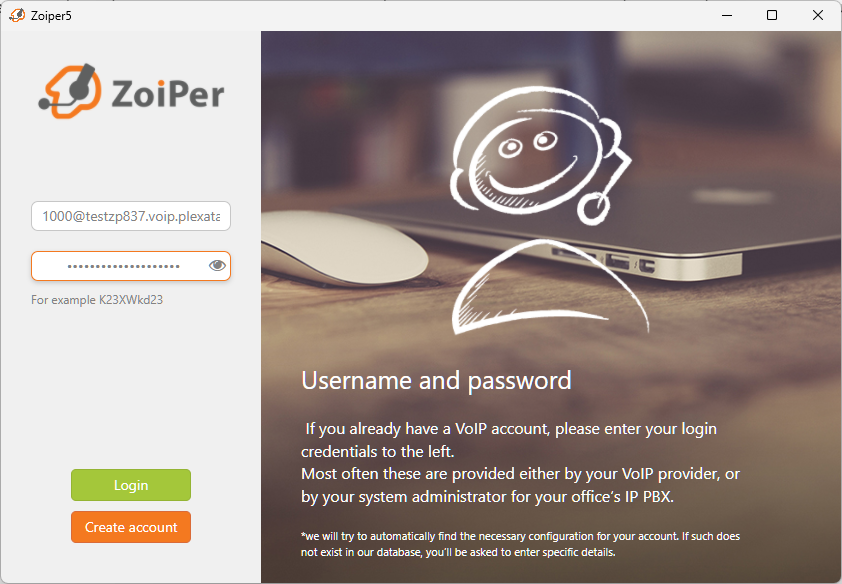
Open Zoiper and choose to add a new account.
Enter the following details:
- User ID and Domain: Format of %userid%@domain – for example 843732@testac.voip.plexatalk.co.uk
- Password: Your SIP password
Once you’ve entered your credentials, click Next.
Step 2 – Confirm the hostname
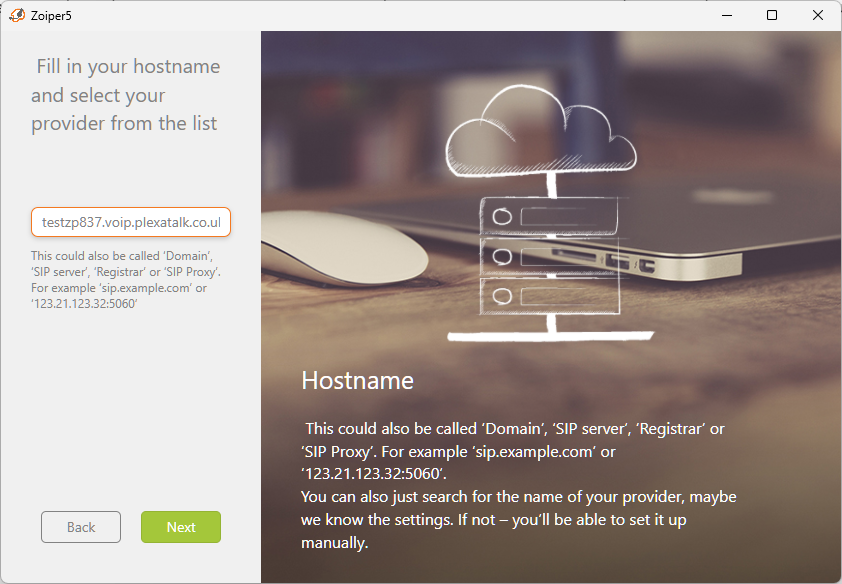
Zoiper will automatically populate the hostname during the setup process.
If the hostname is correct, simply click Next to continue.
Step 3 – Skip the proxy configuration
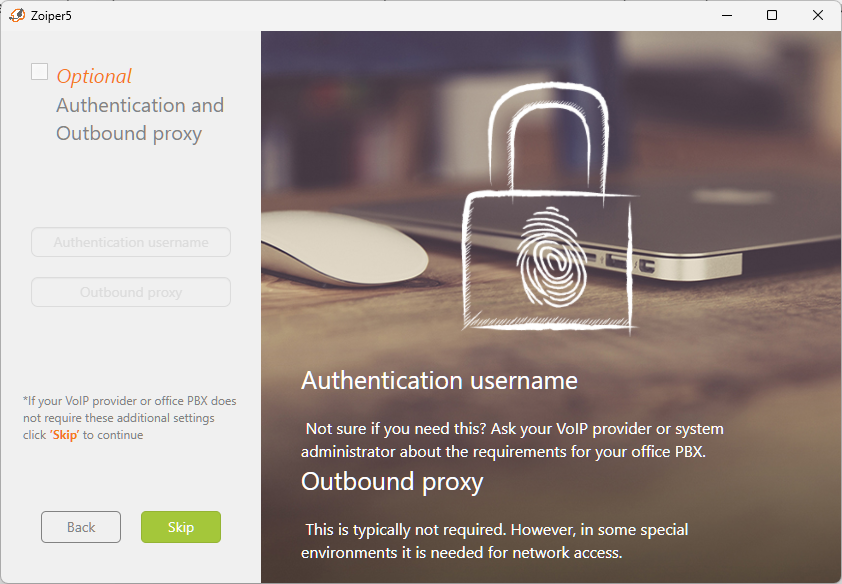
When prompted to configure a proxy server, leave the settings unchanged and click Skip.
No proxy configuration is required for Plexatalk.
Step 4 – Select the transport protocol
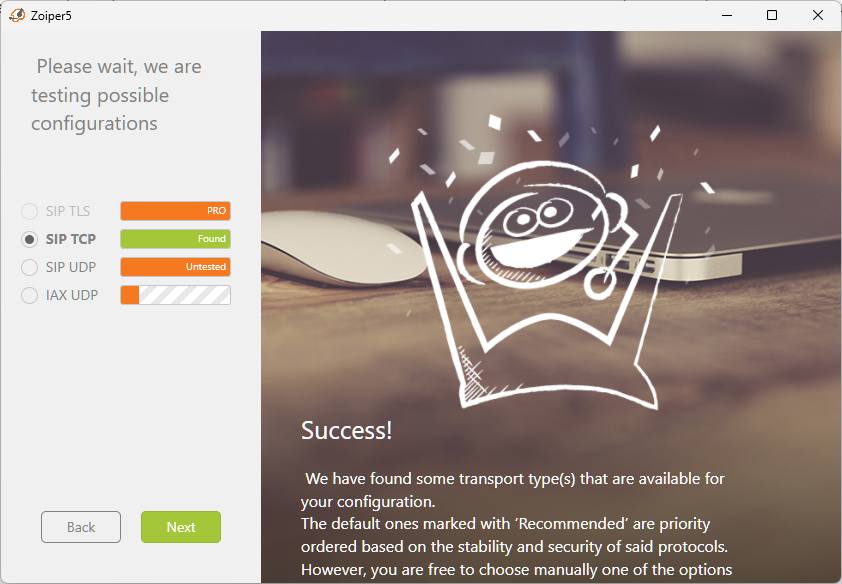
Choose the transport type that matches your Plexatalk configuration:
- UDP – Recommended for most users.
- TCP – Use if instructed by your administrator.
- TLS – Available in Pro version only. Select this if your service has been configured for secure SIP over TLS.
After selecting the transport type, continue with the setup.
Step 5 – Setup complete
Zoiper will verify your account settings.
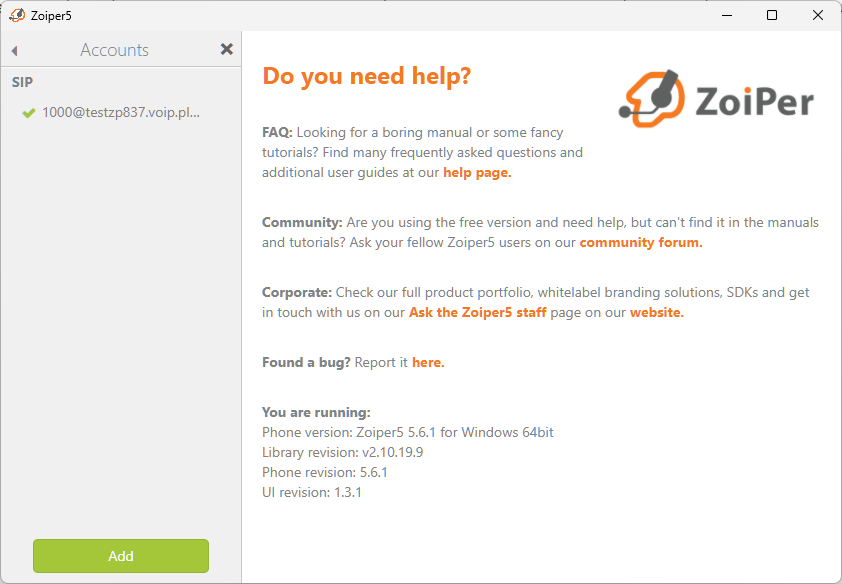
If everything has been configured correctly, you’ll see a confirmation screen with a green tick indicating that your account has been successfully added.
Click Finish to complete the setup.
Looking to Download Zoiper or Buy the Pro Version?
Get Zoiper today from their website
Troubleshooting
If your account isn’t registering successfully, work through the following checks before contacting support.
1. Verify your login credentials
The most common cause of registration failures is incorrect account details.
Check that:
- Your Username (or Extension) is entered correctly.
- Your Password matches the one provided by Plexatalk.
- The Hostname / Domain has been entered exactly as supplied.
Even a small typo or an accidental space can prevent registration.
2. Check the transport protocol
Ensure you’ve selected the correct SIP transport method.
Plexatalk supports:
- UDP – Recommended for most installations.
- TCP – Used in some network environments.
- TLS – Available for Zoiper Pro users when secure SIP has been configured.
If you’re unsure which transport to use, start with UDP unless your administrator has advised otherwise.
3. Test network connectivity
If your credentials are correct but registration still fails, confirm your computer can reach the Plexatalk server.
Open a terminal or command prompt and run:
ping your-sip-server.example.com
Replace your-sip-server.example.com with the hostname provided in your Plexatalk account.
Windows
- Press Windows + R.
- Type
cmdand press Enter. - Run the ping command.
macOS
- Open Terminal (Applications → Utilities → Terminal).
- Run the ping command.
- Press Ctrl + C to stop the test.
Linux
- Open your preferred Terminal.
- Run the ping command.
- Press Ctrl + C to stop the test.
If the server responds, your computer can successfully reach the Plexatalk platform. If the request times out or the hostname cannot be resolved, there may be a DNS, firewall, or network connectivity issue.
Note: Some servers intentionally block ICMP (ping) requests for security reasons. A failed ping doesn’t always mean the SIP service is unavailable, but it can be a useful first diagnostic step.
4. Check your firewall and antivirus
Some security software may prevent Zoiper from connecting to external SIP servers.
Temporarily disable your firewall or antivirus (if appropriate) or ensure Zoiper is allowed through the firewall before testing again.
If you’re on a corporate network, your IT department may also have firewall policies that block SIP traffic.
5. Disable SIP ALG
Many home and business routers include a feature called SIP ALG (Application Layer Gateway).
Although it’s designed to help SIP traffic, it often causes registration failures, one-way audio, dropped calls, or intermittent connectivity issues with hosted VoIP services.
If you’re experiencing any of these symptoms, we recommend checking whether SIP ALG is enabled on your router and disabling it if possible.
6. Try another network
If possible, connect your computer to a different internet connection (for example, a mobile hotspot).
If Zoiper registers successfully on another network, the issue is likely related to your original router, firewall, or ISP configuration rather than your Plexatalk account.
7. Restart Zoiper
After making any changes to your network or account settings, completely close Zoiper and reopen it to ensure it attempts a fresh registration.
Still having problems?
If you’ve completed the steps above and Zoiper still won’t register, please get in touch.
To help us diagnose the issue quickly, include:
- Your extension number or SIP username.
- The hostname you’re connecting to.
- The transport protocol you’ve selected (UDP, TCP, or TLS).
- A screenshot of the Zoiper registration status or any error messages.
- The operating system you’re using (Windows, macOS, or Linux).
Providing this information upfront helps us identify and resolve issues much more quickly.
Frequently Asked Questions
Is Zoiper free to use?
Yes. Zoiper offers a free version that supports the features required for most Plexatalk users. If you need advanced features such as TLS encryption, you’ll need to purchase Zoiper Pro.
Can I use Zoiper on Windows, macOS and Linux?
Yes. Zoiper Desktop is available for Windows, macOS and Linux, and the setup process is very similar across all three operating systems.
Which transport protocol should I use?
For most users, UDP is recommended.
Some deployments may require TCP, while TLS provides encrypted SIP signalling and is available with Zoiper Pro. If you’re unsure, use the protocol specified by your Plexatalk administrator.
Does Zoiper support encrypted calls?
Yes. Zoiper supports secure SIP using TLS, although this feature requires Zoiper Pro. If your Plexatalk deployment has been configured for encrypted signalling, select TLS during setup.
Can I use Zoiper on multiple devices?
Yes, although this depends on how your Plexatalk extension has been configured. Some extensions can register multiple devices simultaneously. All our home packages come with 5 connections.